When a product comes in different sizes or colours, those options are its variants. Each variant has its own stock and, optionally, its own price, weight and size.
What it is
A variant is a specific combination of values - e.g. "Size M / Colour Red". The values come from your shop's attributes (Products › Attributes) - the same sizes and colours a customer filters by are the ones they buy. See Attributes.
Setting up variants
- Open the product's "Variants" section.
- Choose which options apply (e.g. sizes S/M/L and colours). Selecting an option is what makes the product have variants - there's no separate toggle.
- Fill in the matrix - one row appears per combination. For each row, set stock (or leave it "unlimited" with the ∞ switch) and optionally a price (different from the base), a cost, a weight and size (for courier shipping), an SKU and a barcode. A row's SKU overrides the product's own catalogue code (Pricing & stock tab) - leave it blank and the row inherits the product's. Each variant's SKU must be unique in your shop - two rows with one code, or a code another product or variant already carries, refuse the save: the cell turns red and a line under the table says who uses it. With more than five combinations the rows collapse - expand them with "+ N more variants". On a phone or a narrow screen the matrix is wider than the screen - swipe it sideways to reach the price, cost, weight, dimensions and SKU (a line under it says so).
- Save.
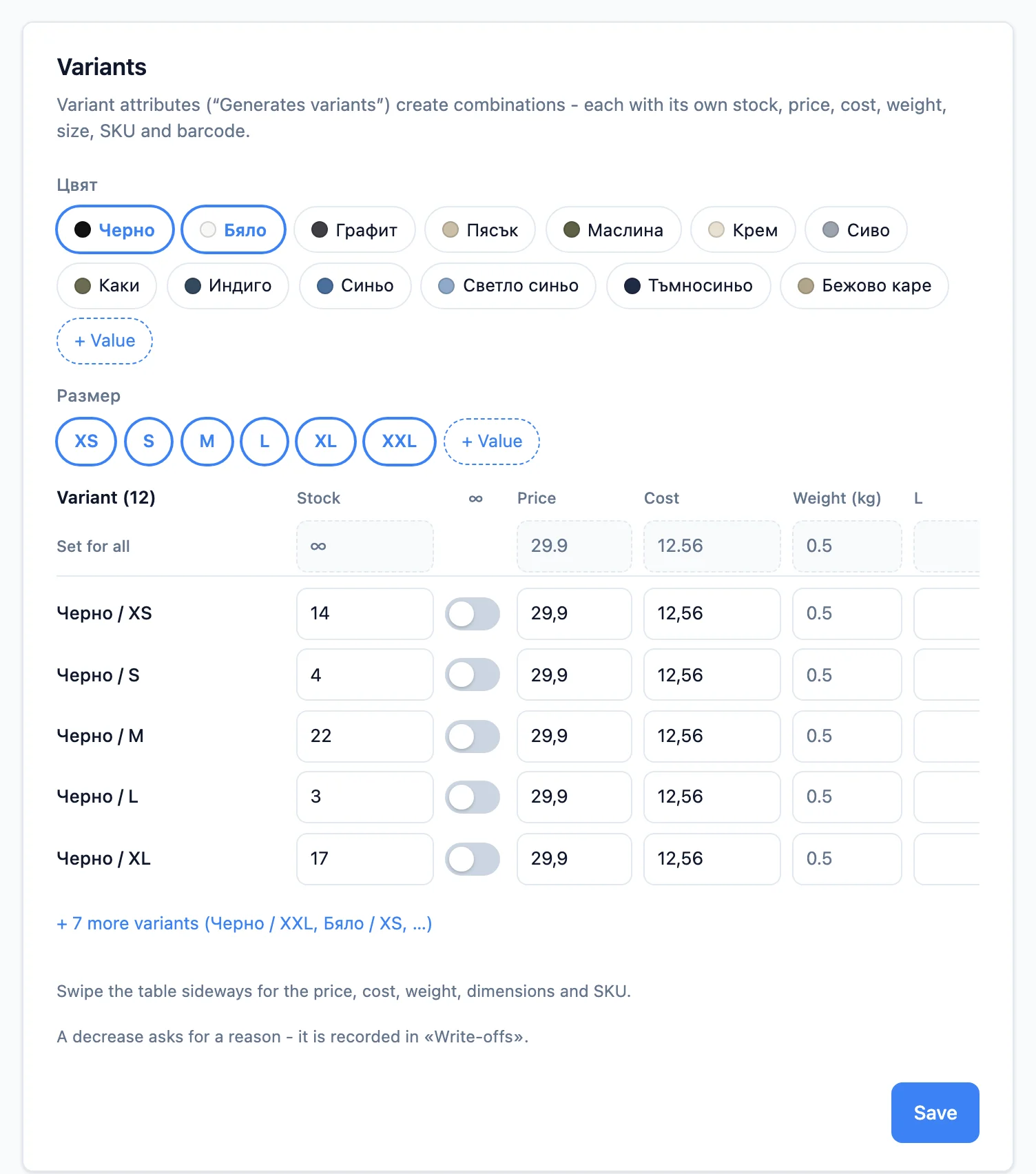
The "Set for all" row
The dashed row above the matrix fills one column for every combination at once - including rows collapsed behind "+ N more". It works for stock, price, cost, weight and size; clearing its stock field puts every row back on ∞. Adjust individual rows afterwards where needed.
Variants and quantity pricing
With quantity pricing (Pro plan and above) the pieces of all of a product's variants add up: 3 × S + 4 × M + 3 × L is 10 pieces, and all of them get the 10-piece price. With "Percentage off" each variant keeps its own price and gets the percentage off it.
Removing the variants deletes their stock
To stop selling in variants, remove all the options and save. A confirmation dialog appears, because this deletes the per-variant stock and the product reverts to a single item with untracked stock. An active bundle that picked an exact variant you delete (for example "T-shirt M") loses that row and is paused, so you can check what it includes. The same goes when you remove just one variant. So the save asks first: the "Remove N variants" (or "Remove all variants?") dialog lists the bundles that will pause, each a link that opens it in a new tab. A save that touches no bundle goes through without asking, as before.
Variants in bulk from the product sheet
You can also create and update variants in bulk from the product sheet (Data › Import): a row with a filled "Parent code" column is a variant of that product, and its value on each axis sits in the matching "Атрибут:" column. See the "Import & export" help article.
Weight and size per variant
When the combinations differ physically (say 300ml vs 700ml), set a weight (kg) and optionally dimensions (cm) on each row. Courier pricing is computed per order line along the chain: variant weight → product weight → default parcel weight (Settings › Couriers). An empty cell simply inherits the next level - the grey value in the "Weight (kg)" column shows what will be used.
For a product with variants, the "Shipping & returns" card (Selling tab) no longer shows weight and size fields - they are edited here, per variant. The "Exception to the right of withdrawal (Art. 57)" field stays there, at product level.
Cost per variant
The "Cost" column says what each variant costs you - an XXL may cost more to make than an S. Customers never see it. It is recorded on the order at purchase and drives the profit and margin in reports. An empty cell inherits the product's cost (Pricing & stock tab) - the grey value in the column shows which one will be used.
In "By batch" mode (see Purchase orders) a variant with batches costs the average of its remaining batches - the cell is read-only, with a lock. It changes with a new batch or a supplier order. A variant without batches (∞, or a new row) is filled in as usual: give it stock and that stock becomes its first batch at this cost. The "Set for all" row fills the cost of the variants without batches only.
Indicative delivery price
The "Check courier prices" button (the "Shipping & returns" card, Selling tab) works on products without variants - there the weight and size sit at product level, so there is exactly one parcel to check. On a product with variants, weight and size live here, per variant, and the check has no variant picker yet - so it is not shown on those products. For a rough figure, check a variant-free product with a similar weight and size.
How stock works
- When a customer buys, the specific variant's stock goes down.
- At zero stock the variant shows as sold out and can't be ordered.
- While a product is in stock, the delivery line sits under the price - the product's own (its editor's Basics tab), else the shop's (Site editor › "Product page"), else the automatic "In stock - ships in 1-2 business days with" and your first courier's name. A sold-out product always shows the automatic "Out of stock right now - get notified when it's back." in its place - see Products.
- If an order is cancelled, the stock is returned automatically.
- When you lower a variant-free product's stock yourself (Pricing & stock), the stock of one or more variants (the Variants table) or a stock in the Prices & stock table of a product that sells by catalogue, saving asks why - one reason for all of them: «Correction» preselected, or damaged, lost, expired and more - and each decrease is recorded in Products › Inventory › Write-offs. A deleted variant is not recorded, nor is a row of the price table you remove, leave empty or switch to ∞. See Write-offs.
Blank does not mean zero
Empty stock means "not tracked" (unlimited), not "sold out". Enter a number if you want the product to run out.
Low stock (Products › Inventory)
The Products › Inventory page has a Write-offs tab (the records of lowered stock - see Write-offs) and a Settings tab. Settings holds the low-stock alerts:
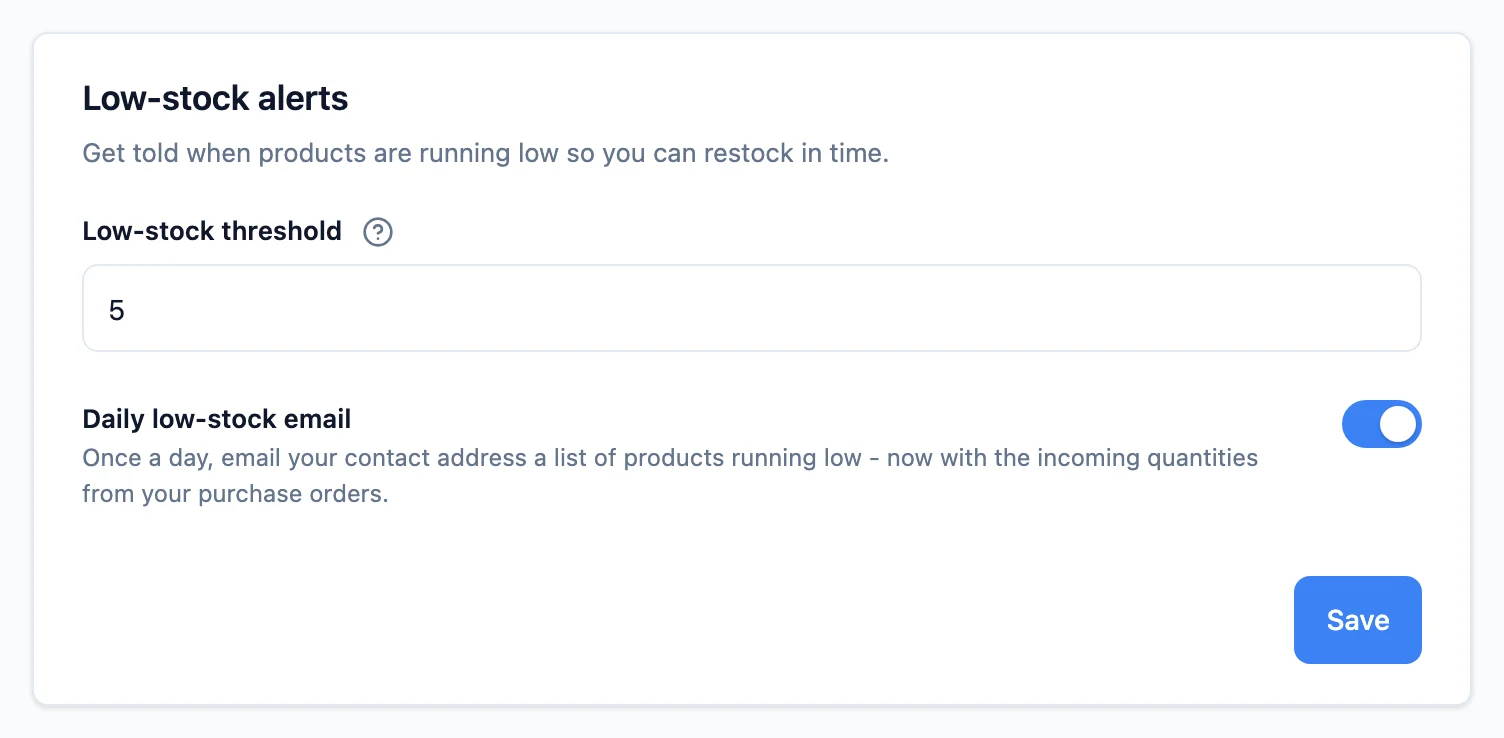
- Low-stock threshold - a product (or variant) with this many units or fewer, but at least one, counts as "low". It is 8 unless you change it. It drives the dashboard's low-stock card, the daily email, and what shoppers see in your shop: the "Only N left" line (on the card of a product without variants, and on the product page once the shopper picks a variant or model) and the "Low (N)" mark next to a size or variant that is running out - in a bundle page's pickers too. A changed threshold applies in your shop as soon as you save it.
- Daily low-stock email - when on, once a day your contact address gets a list of products running low so you can restock in time.
"Notify me when available"
On a sold-out product (or variant) the shopper sees "Notify me when available" and leaves their email. Once you restock, the system sends them one email - several awaited products are bundled into a single message, never repeats. Every notification carries an unsubscribe link; an opted-out address gets no further notices. There is nothing to configure - it works by itself the moment a product sells out.
Link to attributes
Which attributes generate variants is decided by the "Generates variants" switch on the attribute itself (Products › Attributes); each product remembers its own role. Descriptive attributes (Material, Care…) are picked in the Selling tab's Specifications card - they show in the product page's specification table and work as filters without creating variants.
Values are shared shop-wide, so changing the category can never break the variants.
Variants the table can't show
A product that came from an import or from your old shop sometimes carries variants with no value of a "Generates variants" attribute - for example a single "Gold" row. The variants table can't show them, but your shop sells them at their own price and stock, not at the price under "Pricing & stock". The Variants card then shows a "Variants this table can't show" note with each such row's price, was-price and stock.
The "Remove leftover variants" button deletes them and the product becomes a single item. From then on shoppers pay its own price, and the rows' stock moves onto the product (if any row has unlimited stock, the product stays unlimited too). With a single row, its SKU and parcel weight and size move onto the product too, wherever the product has none of its own. So does its was-price, when the product has none and it is above the price the product sells at - the sale shoppers saw stays. Past orders keep their details, bundles with the product stay, and shoppers who asked to be notified on restock still will be. If the product has no price of its own, set one under "Pricing & stock" first.
A product with just one variant is a single item. When a site import or a shop move brings a product with only one variant (for example a single "Gold" row), it is saved straight away as a single item: the value stays under Specifications (so the product is still found by the "Colour: Gold" filter), and the variant's stock, SKU, weight and was-price move onto the product (the was-price only when the product has none and it is above the product's price, so a product on sale stays on sale). A product with no price of its own takes the variant's price. The note above remains only for products with several such rows - those are real variants whose values weren't recognised, so you decide.
Adding a value from the product
Missing a size or colour? Click "+ Value" next to the attribute's chips and type it in place - it's added to the shared dictionary. If the spelling looks like an existing value, the system asks "Did you mean…?" so a duplicate never appears.
Variants as separate products
Sometimes the "colours" of one item are kept as separate products (each with its own page and gallery). The "Variant products" card (Related tab) links them into one group - every product's page shows the others and lets the shopper switch between them. The group is shared, so changes save immediately.
Optionally give the group a name (the "Group name" field). The name is not shown to shoppers - it is the key the product sheet uses to reference the group: in the export's "Variant group" column every product carries its group's name, and on import rows sharing the same name form one group. The import never moves an already-grouped product to another group (that stays a job for this card); a blank cell changes nothing, and "[clear]" removes the product from its group.
Different copy for Meta ads
If you advertise the product on Facebook/Instagram (see Advertise on Meta), you can give it a different title and description for the ad catalogue only - your storefront wording stays intact:
- Turn on Advertise on Meta for the product - the Meta ad title and Meta ad description fields appear.
- Fill in whichever field you want to override.
Blank means the normal copy
The catalogue falls back to the product's normal title/description whenever the Meta field is empty - there are no separate per-field toggles.
Tips
- Set up your shop's attributes first (Products › Attributes), then the product's variants.
- Keep stock accurate - it prevents overselling.
- Only set a per-variant price when it differs from the base.
Next step
Your individual products are ready. Now you can sell them together as a set at a better price. See Bundles.