The Products screen is where you build and maintain your catalogue. Here you set names, prices, images, stock, and which categories each product appears in.
This starts the catalogue phase, the third stage of setup. With your storefront styled, you now fill it with things to sell. If you're moving from another platform, see Import & export rather than typing everything in by hand.
What it is
A product is something you show or sell - a shop item or a catalogue entry. Products appear on your public site's /products page and in any categories you add them to.
Creating a product
- Click "New product". A small dialog opens - enter the title, choose its visibility (Hidden - only you see it until you show it - or Visible now) and click Create product. A new product starts Hidden so you can finish it calmly - see [Hidden products](#hidden-products).
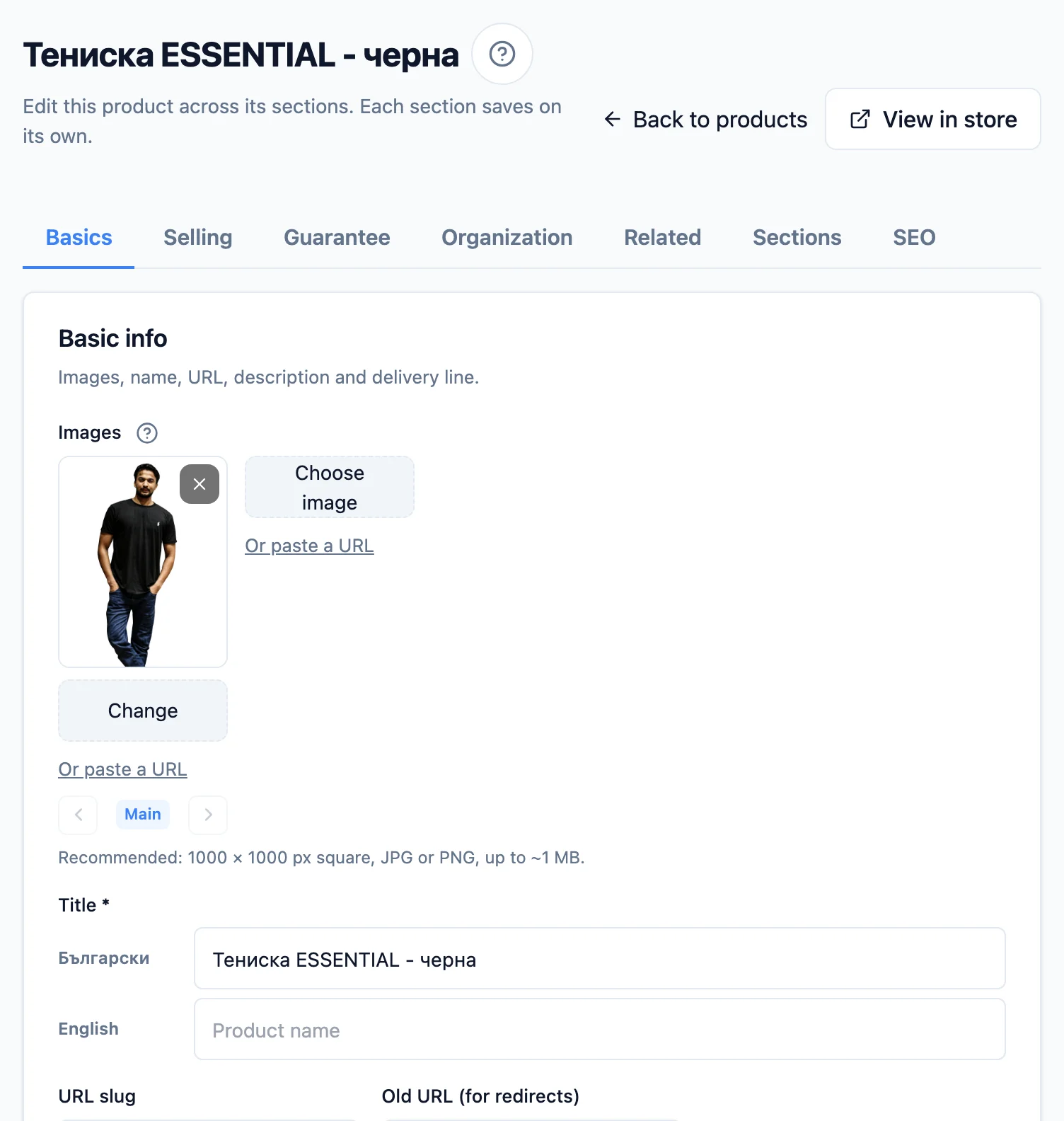
- Fill in the editor. The product is created straight away and its editor page opens, with the tabs Basics, Selling, Guarantee, Organization, Related, Sections and SEO (plus Custom print if you have the add-on). The fields are described below.
- Save tab by tab. Each section saves on its own - there is no single save button for the whole product. "Back to products" at the top takes you back to the list, and "Edit in the store" opens the product in the Site editor, where its name, price, photos and visibility change right on its page.
To edit a product later, click its name, its picture or the pencil icon on its row - the same editor page opens. The arrow-out icon next to the pencil opens it in a new tab, so the list stays open and you can edit several products one after another. (On a computer you can do the same with Ctrl+click, or Cmd+click on a Mac, on the name or the pencil; on a phone, press and hold and choose "Open in new tab".) The row's actions are icons - pencil (edit), arrow-out (new tab), eye (hide or show), box (archive) and bin (delete); hover over an icon to see its name. On a phone the icons sit on their own line under the product's name.
Fields in the editor
- Title in each language - if your site runs in more than one language, the editor shows one title field per active language. A shopper sees the title in whichever language they're browsing; an empty translation falls back to the default-language title automatically. The link (slug) stays the same across all languages. The Description field below is likewise entered per language.
- Delivery line in each language (Basics tab) - the sentence under the price that says when you will send the order, e.g. "Made to order - ships within 4-6 weeks.". Fill it in only for a product that differs from the rest: an empty field shows the shop's line in that language (Site editor › "Product page" › "Delivery line"), or the automatic sentence if there is none. Unlike the title, an empty translation does not borrow the default language's text - the English page never shows a Bulgarian sentence. You can use {days} and {courier} just as in the shop's line. A sold-out product always shows the automatic "Out of stock right now - get notified when it's back.".
- Price in your store currency (euro). It is shown exactly as you enter it - there is no second currency.
- Compare-at price (optional) - for a struck-through "was" price; the percentage off is calculated for you.
- Quantity pricing (Selling tab, Pro plan and above, optional) - a lower price per piece when a customer buys more pieces of the product, for example €27.90 instead of €29.90 from 5 pcs up. Set it up in the Quantity pricing card after the prices - see Quantity pricing.
- Cost (optional) - what the item costs you. Used for the margin & ROI reports on your dashboard and never shown to customers.
- SKU (optional) - your catalogue code for this product. Unlike cost it is shown: through the product.sku variable in description sections, as
mpnin the Facebook feed, on the invoice and goods note, and beside the item in an order so whoever packs it can find it. If the product has variants, each variant can set its own SKU on the Variants tab; a variant without one inherits the product's. Every code is unique in your shop: if another product or variant already carries the same code (upper and lower case count as the same), the save is refused and the field says who uses it, with a link. The exception is the code of a product with variants - it is a shared (parent) code and may match another. Duplicates from before this rule stay until you change the code. - Exception to the right of withdrawal (Art. 57) (Selling tab, "Shipping & returns" card) - if the product falls under an Art. 57 exception, pick the point: pt. 3 - made to order or personalised, pt. 4 - deteriorates rapidly, pt. 5 - sealed for hygiene reasons, pt. 6 - mixed with other goods, pt. 9 - sealed recording or software, pt. 10 - a periodical. None is the default. An exception does not block the withdrawal: the customer can still choose the item when withdrawing from the contract, sees the exception beside it, and the decision is yours. The product is not offered in the self-service return form. A product without its own exception takes its category's. A product marked non-returnable before exceptions had grounds shows "Exception (no ground given)" - choose the point.
- Images - upload one or more. The first is the main one. Images are optimised automatically on upload: the shop keeps your original and generates several smaller copies in a modern format (WebP), then sends each visitor the smallest one that fits their screen - a phone gets a phone-sized file, a desktop a larger one. Nothing is cropped and you never upload separate sizes; upload one good photo (around 1500-2000 px on the long side is plenty for a product) and the rest is handled for you.
- Categories - which it appears in, and which is the primary one. The primary category's campaign replaces the site one; any other category of the product (and the categories above them) can only make it bigger.
Top-right, the "View in store" button opens the product's public page in a new tab so you can check how it looks live.
Producer guarantee (EU GARAN)
When the producer gives a free commercial guarantee of durability for the whole product for more than 2 years and has given you those details, the law (Consumer Protection Act, art. 47(1)(12a)) requires you to show the official EU label EU GARAN. You set it up on the editor's Guarantee tab, product by product.
- Switch on Show the EU GARAN label. Switch it on only on the producer's information - a label without such a guarantee misleads the shopper.
- Guarantee years - whole years from 3 up, for example 3, 5 or 10. Half-years are not accepted: on the official template they run into the calendar.
- Producer's brand - the name as written in the guarantee.
- Producer's model - a product with variants has one field per variant. The first time you switch the label on, the fields are filled in from the SKU (the variant's, else the product's); if the SKU is your own internal code, replace it with the producer's model - that is what the label shows. Set for all writes the same model to every variant; clear that field again and the variants get their previous models back. If you changed a single variant's model in the meantime, clearing the field puts nothing back and your change stays. Every variant needs a model; a variant added later without one shows no label, and the tab flags it.
- On the right (on a phone, under the fields) is the Label preview - exactly what shoppers will see, updated as you type. The brand and the model share one line on the label: if they do not fit, the field tells you how many characters to cut. The official label's type is never shrunk.
- Press Save.
Shoppers see the label:
- on the product page - the small ("nested") label under the trust badges; for a product with variants it follows the chosen variant. Tapping it opens the full label;
- at checkout and in the fast order - one row per guaranteed product right above the order button, with the product's name and a short sentence. Tapping the row opens the full label;
- on a bundle page - beside the guaranteed product in "Products in this bundle", with a sentence saying the guarantee covers that product only, not the whole bundle;
- in the order confirmation email - the full label as a picture embedded in the email itself.
The order keeps the label each line was sold under, so a later change to the product does not change orders already placed.
The label does not replace the guarantee
Also hand the shopper the producer's guarantee itself - who the guarantor is, the terms and how to claim - at the latest on delivery, on paper or by email (art. 40 of the Act on the sale of goods and digital content). The label only says that such a guarantee exists. The legal guarantee of conformity still applies alongside it.
Stock and link
- Stock tracks inventory. When it runs out, the product shows as sold out. The low-stock threshold and the daily email are set under Products › Inventory; they and "Notify me when available" are covered in Variants & stock.
- The link (slug) makes the URL readable, e.g.
/product/black-tee. It's suggested from the title and can be edited. - Old URL (for redirects) - if you migrated the product from another platform, paste its old URL here and on save we automatically create a 301 redirect from it to this product. Products imported with an old-URL column also get a redirect automatically. Leave blank if it's new.
Multiple categories
A product can live in several categories at once. Pick them from the product form, or add existing products from a category's own page.
Primary category. When a product is in more than one category you choose which is primary. It is not just a label - it drives the Google/Meta taxonomy, the returns rules, the description sections and the breadcrumb.
Smart categories are not picked here. They choose their products by a rule, so they are offered neither for adding nor as the primary - not in the product's Organisation tab, and not in the list's bulk "add to category" bar. If a product falls into a smart category by rule you'll see it listed under "Also listed in (automatic)", for information only. To change where it appears, change the product settings the rule selects on (its option-catalogue compatibility, for example). See Categories.
Bundles. If saving a price, a "was" price, variant prices or the product's categories makes an active bundle no cheaper than its products bought separately, you'll see an amber notice instead of the usual one, with a button to the bundle. The bundle stays active - see Bundles.
Related products ("goes well with" & variants)
The product form's Related tab shows two cards covering two kinds of hand-picked product-to-product links (distinct from the automatic category "related" and from Bundles, which are a priced set):
- Goes well with - a directional cross-sell list you order yourself (add products, remove them, move up/down). It shows on the product page as "Goes well with". In the cart, checkout, order-success page and emails these recommendations are aggregated across the whole basket - a product recommended by several items ranks first. It appears only when you've configured links; otherwise the whole section disappears.
- Variant group - a mutual group for "the same item in another colour" sold as separate products (e.g. Black/Blue/Grey). Every member shows the others as compact cards that route to the other product. Product page only - never in the cart or emails. A product can be in only one group; linking happens immediately (no Save button).
Cross-sell is curated only
The platform never shows random products - if you haven't set links, the section simply doesn't appear.
Recently viewed
Under "Related products", the product page also shows Recently viewed - up to 8 products the same shopper opened most recently in your shop, newest first. The product on screen is never in the strip, and it appears only once the shopper has viewed at least one other product. There is nothing to set up - it is on for every shop and uses the same card layout as "Related products". The list is kept only in the shopper's browser (on their device) - it is never saved by the shop or shown in the BackOffice. An archived product drops out of the strip by itself.
Hidden products
A hidden product exists, but shoppers cannot see it or reach it. Use it for a product you are still preparing (photos, price, description), or one you do not want to sell for a while. Hiding is separate from archiving: a hidden product stays in the Active list with a yellow Hidden label, while an archived one leaves it.
- In the product editor, the Visible in the storefront switch at the top right hides or shows it. It saves at once.
- In the list, the eye icon on the row hides or shows it in one click. In the bulk bar, Hide and Show do the same for the whole selection. The Hidden status filter lists only hidden products.
- When you create a product, you choose Hidden or Visible now - here and in the Site editor ("Go to…" › "+ New product").
- In the Site editor a hidden product shows in the preview, captioned "Hidden product - only you see it, in the editor", so you can finish it on its real page. "Go to…" marks it Hidden, and the Visible in the store switch in the "This product" scope shows it. See Site editor.
While a product is hidden it is missing everywhere shoppers look: categories and search, "goes well with", recommendations and recently viewed, favourites, the store-wide reviews, the Meta and Google catalogues and the sitemap. Its address answers "Page not found". If it is already in someone's cart, checkout removes it from the order. A bundle that contains it hides too, until the product shows again. "Notify me when back in stock" requests wait and are sent once the product shows. Orders that already contain it do not change.
Archiving and deleting
There are two ways to take a product off your site:
- Archive - click the box icon on the row and confirm in the dialog that opens. The product is hidden from your storefront (catalogue, product page, Meta catalog) but kept in the system and recoverable, so your order history stays intact. This is the right choice to hide a product without losing it. Click the Restore icon (a box with an up arrow) on the archived row to bring it back to the shop - straight away, with no confirm dialog.
- Delete - the bin icon on the row. Removes the product permanently, along with its images. Delivered and cancelled orders don't block it: their lines keep their own saved details, so your history and reports stay accurate. The picture each past order line shows is kept, so the order, its emails and the customer's order history never show a broken image. The same goes when you remove a variant that has sold. An active bundle that contains the deleted product is paused, so you can check what it includes and its price before switching it back on. The confirm dialog lists those bundles before you delete - each one is a link that opens the bundle in a new tab, so you can look at it and still decide. With more than five, you see the first five and a link to all of them. While the check runs (usually a moment), the Delete button waits.
A product with an order in progress can't be deleted
"In progress" means a new order, or one dispatched but not yet confirmed as delivered. Archive the product to hide it right away, and delete it later once those orders are delivered or cancelled.
Bulk actions. Tick several products with the checkboxes (or "Select all matching"). The bar at the top shows Archive and Delete, which do the same for the whole selection at once. On a bulk delete, any products with orders still in progress are skipped automatically, and you're told how many were deleted and how many were skipped. The dialog also lists the active bundles the delete will pause (not counting those of skipped products). When the shop sells by catalogue, the bar also has Sell by catalogue - if it lowers a product's stock, it first asks for a reason and records the decrease in Write-offs (details: Option catalogues).
Use the status filter at the top to switch between Active (the default, hidden products included), Hidden, Archived, and All statuses.
Pagination. The list loads 24 products per page. Below it you see how many are shown out of the total (for example "Showing 1–24 of 265 products") plus numbered pages, so you can jump straight to any page - including the first and last. Search and filters apply to your whole catalogue, not just the loaded page. On a phone the numbers collapse to "Page 1 of 12" with back and forward arrows.
Search and filters
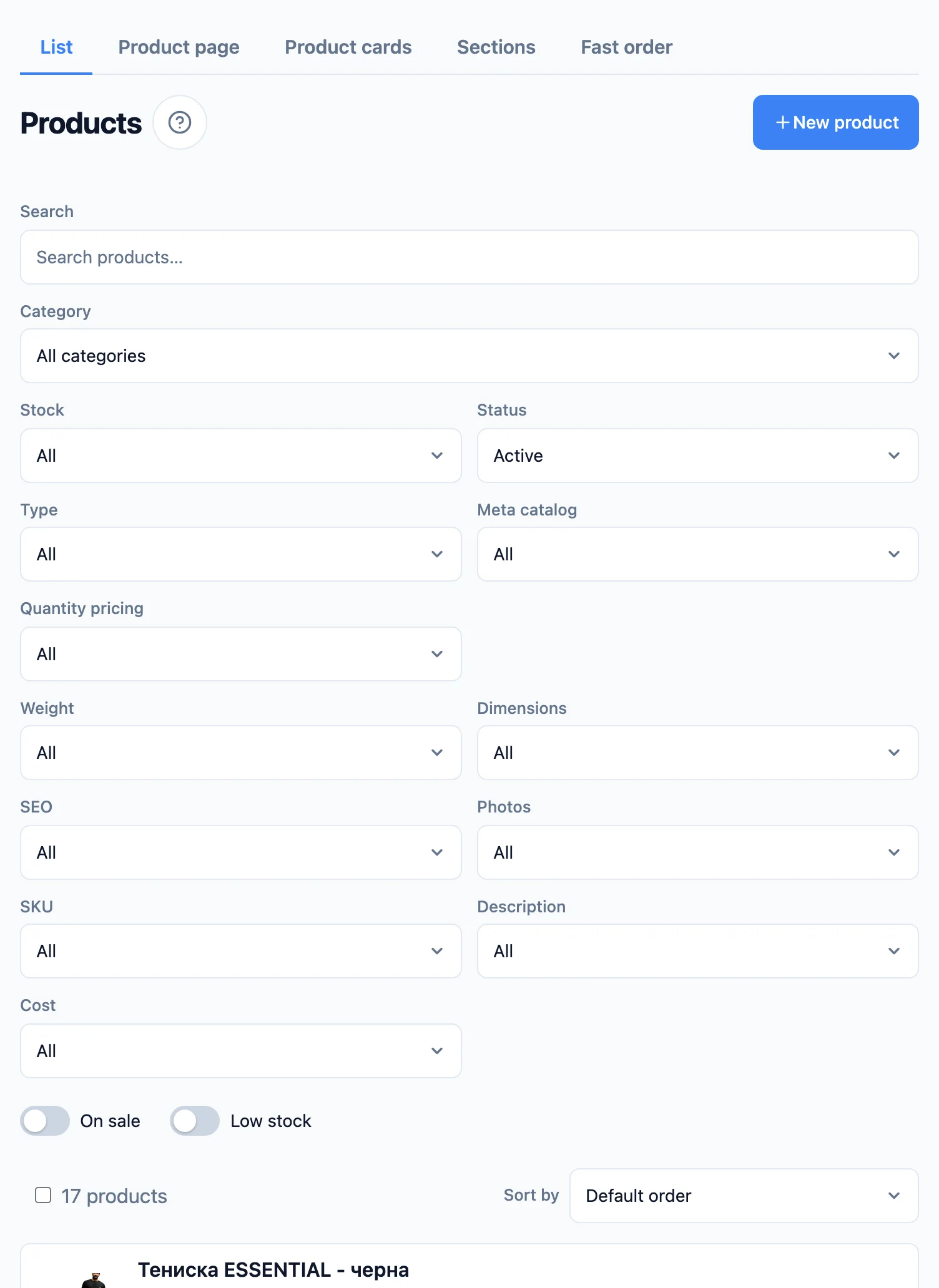
A filter bar sits above the list - each control labelled so it's clear what it does. They're all shown at once: the first row is what to show, the second is data completeness, and the two switches sit beneath them. The columns of both rows line up with each other; on a phone the fields sit two to a row, with the search and the category each on a row of their own. Changing any filter resets to page 1. Filters apply to your whole catalogue, not just the loaded page. Once any filter is active, a Clear filters link appears on the right, beside the switches.
Basics
- Search - by product title.
- Category - shows your categories as a tree (parent › subcategory). Pick Uncategorized to see products that aren't in any category - those are hard for shoppers to find, so it's a useful pre-launch check. Smart categories appear here too, marked *Smart*; picking one shows exactly the products its rule currently selects - the same set shoppers see - so you can review the rule or bulk-act on its members (you still can't add products to a smart category by hand).
- Stock - all / in stock / out of stock. For a product with variants it reads the variants: the product is out of stock when every variant is at 0, and a variant whose stock isn't tracked counts as available.
- Status - active (the default) / hidden / archived / all.
- Type - all / with variants / simple (no variants).
- Meta catalog - whether the product is advertised in the Meta feed.
- Quantity pricing - all / on / off (Pro plan and above). Products with quantity pricing switched on carry a Quantity pricing tag, with a warning beside it when one of its rows does not apply.
Data completeness. Each of these has three positions - All, Present and Missing - to quickly find products that are missing something (invaluable when launching a shop or preparing a product feed):
- Weight - a product with no weight is priced by the courier at the default weight, not its real one, so "Missing" surfaces exactly those.
- Dimensions - "Present" requires all three sides (length, width, height); even one missing counts as "Missing". Dimensions are needed by Pigeon Express and BOX NOW lockers.
- SEO - whether a SEO title, meta description or social share image has been set by hand.
- Photos - products with no image at all.
- SKU - whether a catalogue code is set.
- Description - whether there's body text.
- Cost - needed for the margin reports; "Missing" shows products without it.
Switches
- On sale - only products with a compare-at ("was") price set.
- Low stock - products whose stock has dropped to the low-stock threshold but aren't sold out yet. For a product with variants it reads the total of the variants whose stock is tracked - the same "N in stock" figure its row shows. So a product with 1 in size S and 40 in M is not low.
Sorting
Above the list, to the right of the product count (below it on a phone), is Sort by. Products start in the Default order; you can also sort them by:
- Price - low to high or high to low.
- Name - A to Z or Z to A (upper and lower case sort together).
- SKU - ascending or descending. Numbers sort as numbers, so "SKU-9" comes before "SKU-10".
- Quantity - low to high or high to low.
The sort applies to your whole catalogue together with the active filters, and it stays when you change page or filters; Clear filters does not reset it. Products with no value for the chosen field - no price, no SKU, or stock that isn't tracked - always come last, whichever direction you sort.
For a product with variants, the price is its cheapest variant and the quantity is the total of the variants whose stock is tracked. Both show on the product's row too: "from €12.00" (when the variants are priced differently) and "24 in stock" beside the variant count.
Product page and card layout
How a single product's page looks - the gallery, the variant picker, the description and sections, the order button, the trust badges, the sold and view counts, the connected products, the delivery line and the page width - is set in the Site editor, in the "Product page" scope, on your live site through the draft - the "Edit in the store" button at the top of the Products list opens the editor right there.
How every product card looks - the predefined layouts and your own, the card designer, one layout for the whole store, the favourites heart, the rating, quantity prices on cards and the favourites and search cards - is in the editor too: the "Store" › "Product cards" scope (see Site editor). The old Product cards tab and the card layout editor open the editor right there.
Fast order
Requires the Pro plan
Fast order is available on the Pro plan and above. See Billing to change your plan.
The Fast order tab turns on a lightweight "leave your contact and we'll call you" path on the product page. It never replaces the normal cart and checkout; when a shopper submits it, an order is created with the Awaiting contact status, and you phone the customer to confirm it. A fast order reserves the stock the moment it's submitted, exactly like a checkout order, and gives it back if you cancel it. The button is hidden on a sold-out product, and if the item sells out while the shopper is filling in the form, it tells them so instead of taking the order. A fast order orders the quantity from the page's Quantity field; with more than one piece the window shows the maths, for example "3 × €5.00 = €15.00".
- Enable fast order - the master switch. Off = nothing fast-order related shows on your site.
- How it appears - inline in the product page, as a slide-in drawer, or as a pop-up dialog.
- Reveal fields on click (inline only) - show just a "Fast order" button; the fields appear when the shopper taps it.
- Contact fields - for each of Email, Names and Phone, choose whether it's Visible and whether it's Required. A required field must be visible.
Email or phone must be required
Otherwise you have no way to reach the customer, and a fast order you can't follow up on is useless. Until that holds, the Save button stays disabled.
If the shopper left an email, they get the Order received (awaiting confirmation) notification - "we have your request and will confirm it", with the items they ordered. It is editable like every other one in Settings → Emails (see Emails): the wording, blocks and layout are yours, and if you switch the notification off the shopper gets nothing. You get a separate email with their contact details and a reminder to call.
Description sections
The content slots (e.g. "Materials", "Delivery & payment") shown on every product page are created, ordered and edited in the Site editor › "Product page" › "Description and sections".
Each section is one of four types:
- Shared - you author the content once and it shows identically on every product.
- Per product - you set the title and position once; each product fills in its own content on the product form. Empty content hides the section on that product.
- Per category - each category fills in its own content in its own Sections tab (e.g. a size table that differs between shoes and clothing).
- Per bundle - each bundle fills in its own content in its own Sections tab (e.g. "What's in the set").
Each section can also carry an optional icon. Pick one from the icon list in the Icon field; it shows next to the section's title on the storefront.
A section can also open from the picker of one attribute - the Also opens from the picker of field (e.g. Size). The product page then shows a link with the section's title (e.g. "Size guide") beside that picker's label, and the link opens the section in a pop-up, so shoppers check the size without scrolling down. The link only shows on products the section has content for (for a Per category section, when the product's category has filled it in), and the section stays in its usual place below the product too. Per bundle sections do not have this setting: bundle pages have no variant picker.
Content is written in a rich-text editor (headings, bold/italic, lists, links, tables, and images). Use Insert field to drop in placeholders - fields like product.title or tenant.phone wrapped in double curly braces - that are filled in automatically on the live site.
SEO & sharing
Each product has a collapsible SEO & sharing section in its form, where you can hand-tune how the product appears in Google and in shared links:
- Focus keyword - the main phrase you want the product to rank for in Google (e.g. "handmade leather bags"). An SEO analysis panel appears below the section with a green/amber/red checklist that tests whether the phrase is in your title, description, URL and content.
Keywords are a writing aid, not a meta tag
The focus keyword and its analysis are never shown on your site. Google has ignored meta keywords since 2009 - this is a tool to help you write more focused copy.
- Additional keywords - secondary phrases, separated by commas. The analysis checks that they appear in your content.
- SEO title - the page title in Google results and the browser tab. Blank = the product name is used.
- Meta description - the short snippet under the title in Google (up to 160 characters). Blank = the product description is used.
- Social share image - the picture shown when the link is shared on Facebook, WhatsApp or X (1200×630 recommended). Blank = the first product image is used.
A blank field falls back to the product's own value, then to your site-wide SEO settings (see Site settings).
Tips
- Use clear titles - they become both the link and the search-engine text.
- Upload your own high-quality photos; they influence sales the most.
- The product page shows photos in full - never cropped. The frame takes the shape of the product's tallest photo, so photos that share one aspect ratio fill it most tightly; one with a different ratio still shows whole, on a backdrop.
- For items with sizes/colours, see the Variants & stock guide.
- Products with an order still in progress can't be deleted (this keeps your order history accurate) - archive them to hide them without losing the data, and delete them later once those orders are done.
Next step
You have products. Now organise them so customers can find them - in categories. See Categories.