Categories arrange your products into groups customers browse - e.g. "T-shirts", "Gifts", "New in". They're managed from the Categories screen.
What it is
A category is a group of products with its own page (/products/category-name), layout, and filters. A product can belong to several categories.
Creating and editing
- Click "New category", enter a name, choose "Hidden" or "Visible now" ("Hidden" is picked at first - the category stays out of the store until you show it) and hit Create.
- You land straight on the category's own page - its full editor, split into tabs.
- Save - the Basics tab has a single "Save" button that stores the whole tab at once. In the other tabs each card saves on its own.
You can also create a category from the site editor: "+ New category" in "Go to…" (see Site editor).
To edit later, click the pencil icon on the row - it opens the same page.
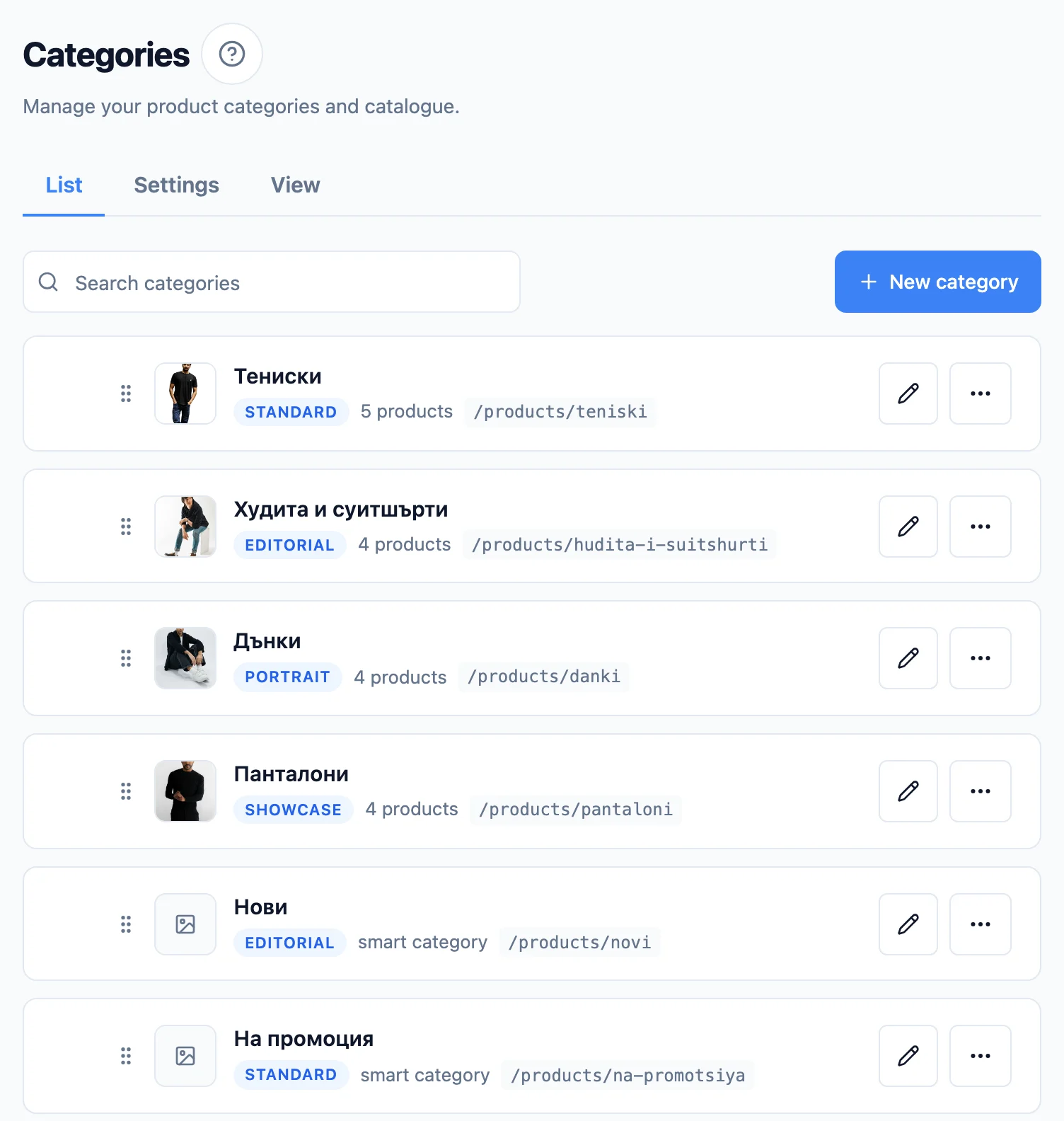
The category list
- Subcategories collapse - the arrow on the left of a parent category hides or shows its subcategories. The choice is remembered in this browser, separately per shop. Above the list you have "Expand all" and "Collapse all".
- Reordering - the row's "Move up" and "Move down" buttons move the category one place among the categories of the same level (the hidden ones the toggle took out of the list are skipped). On a phone this is how you reorder. On a computer you can also grab a row by its handle (the six dots) and drop it on another row of the same level. Only the handle starts a drag, so the arrow and the row's buttons click normally. A collapsed parent moves together with its subcategories. While you search, the reorder buttons are hidden. Moving under a different parent is done from the row menu ("Move to…") or the Basics tab (the "Parent category" field).
- Thumbnail - every row shows the category's image, or its first product's photo when it has none.
- "Art. 57, pt. 4" next to the product count means the category carries an exception to the right of withdrawal. It is chosen on the Basics tab; the row only shows it.
- Search - the box at the top narrows the list by name or link (slug); matches show together with their parent categories, and collapsed categories unfold while you search. The "Show hidden" toggle hides or shows the hidden categories.
- Row menu (the three-dots icon) gathers the row's actions: Duplicate, Move to…, View in store, Hide/Show and Delete. The pencil icon opens the editor directly. "View in store" is absent for a hidden category, because its page is not public.
- Duplicate - from the row menu. Creates a copy of the category with its whole configuration (layout, filters, campaign, SEO, product taxonomy). You choose the name, the parent category, whether to also copy the products (manual categories only) and whether to copy the whole subcategory tree. Images are re-uploaded so the copy owns its own files; the old URL is not copied, and the copy stays off the home page until you add it in Online store › Site editor. A copy that would exceed 3 levels is not allowed.
- Move to… - from the row menu. Moves the category under a different parent (or to the top level), together with its subcategories. The picker won't offer targets that would create a cycle or exceed 3 levels.
The category tabs
| Tab | What it's for |
|---|---|
| Basics | Name (per language), link, old URL, category image, manual or smart, the exception to the right of withdrawal (Art. 57) for all its products |
| Products | Which products are in the category, and in what order. The row's "Move up" and "Move down" buttons move a product one place (on a computer you can also drag the row); while you search they are hidden. Each product without variants shows its stock: "Out of stock", "Low · N" (at or below your low-stock threshold) or "In stock · N" |
| Campaign | A banner and discount for this category. The discount applies to every product in it and in its subcategories (a smart category too), whatever other categories the product is in. When this is not the product's primary category, the discount applies only if it is bigger than the one the product already gets. A product in several campaigns gets the biggest discount. The price shows everywhere, search results and Favourites included, and it is exactly what is charged |
| Sections | Content for your description sections (e.g. a size chart) |
| SEO | Search title and description + a preview of Google and social sharing + product taxonomy (Google) for the ad feeds |
How the category shows - columns, sorting, filters, subcategories, card look - is set in the site editor: "Edit in the store" at the top right opens it on the category's page, in "This category" (see Site editor). Its page sections are arranged there too (Business plan - see [Page sections](#page-sections-business) below). "View in store" opens the category's public page in a new tab.
Fields in "Basics"
- Name in each language - if your site runs in more than one language, the editor shows one name field per active language. A shopper sees the name in whichever language they're browsing; an empty translation falls back to the default-language name automatically. The link (slug) stays the same across all languages.
- Link (slug) - suggested from the name (e.g. "Sweets" →
sweets) and editable. - Old URL (for redirects) - if you migrated this category from another platform, paste its old URL here and on save we automatically create a 301 redirect from it to this page. Changing the old URL moves the redirect; clearing it removes the redirect. Leave blank if it's new.
- Category image - optional. Shown in the "Visual tiles" and "Round chips" category filters. Leave it empty to use the first product's photo. It is also the category's photo in the phone menu when "Photos in the phone menu" is on in the site editor's navigation - there with no fallback photo: a submenu shows photos only when every category in it has its own image (see Site editor). The tiles' shape is set store-wide in the site editor (All categories › Filters › "Category image tiles").
The home page is arranged in the builder
Which categories sit on the home page, in what order, and with how many rows × columns is decided in Online store › Site editor, on a live preview of your site. There is no toggle for it here.
Subcategories (parent and child categories)
Categories can form a hierarchy - one category is a "parent" and others are its subcategories (up to 3 levels deep).
- Parent category - in the Basics tab, choose which category this one sits under. The picker won't let a category be its own parent or a parent of one of its subcategories (no cycles). Leave it on "No parent" for a top-level category.
- When a category has subcategories, two separate settings appear in the site editor, in This category › "Display" (both can follow the store):
- Child category layout - how the links to the subcategories look: Chips (a compact filter row), image tiles - Grid, List or Band (horizontal scroll), Filter (in the sidebar) - or None (hidden), which starts the page with the products instead. None hides only that strip: the subcategories stay exactly as they are, with their own pages, their place in the menu and their products. It is for a parent with more subcategories than a strip can usefully preview - a brand with 37 models, say, where the strip pushes the products off the screen.
- Filter (in the sidebar) does the same thing, more usefully: instead of a strip of links, the subcategories become a "Subcategories" filter in the filter sidebar - one row each, with its product count beside it. A shopper can tick several at once (they then see the products from all of them), and remove them from the chips above the grid or with "Clear all". The counts are live: they respond to the other filters (price, availability) and always say exactly how many products ticking that row will leave. On a phone the filter comes first in the Filters drawer, and past 8 subcategories it collapses behind "Show all (N)" so it doesn't push price and availability out of reach. The selection is written into the page address (
?cat=...), so the link can be shared and the Back button undoes it. Those filtered views are not indexed by search engines - the subcategory's own page stays the canonical address. - Products shown - which products the page lists: Only this category's products, Only the subcategories' products (excluding any added to the parent alone) or This category and all subcategories (combined, de-duplicated). For either subcategory option it can optionally fold in products from "smart" subcategories too.
- The two settings are independent with one exception: any layout pairs with any product scope, except "Filter" with "Only this category's products". The filter narrows the subcategories' products, and that scope doesn't list them - so every count would read 0 and ticking a row would do nothing. While Filter is selected the "Only this category's products" option therefore disappears from the list, and if it was already chosen it switches automatically to This category and all subcategories.
- New categories start on Grid and This category and all subcategories by default. If the parent has no products of its own and Only this category's products is selected, the page simply shows the subcategory cards - so do not pair that combination with None (hidden), or the page has nothing left to show.
- Tile with no image - if a subcategory has no image of its own, its tile uses its first product's photo.
Breadcrumb and menu
In the store, every category and product page shows the full path (e.g. Home / Products / Men's clothing / T-shirts). And in the navigation of Online store › Site editor (the "Store" scope), the "Auto submenus" toggle makes each parent category in the navigation bar show its subcategories as a dropdown - and, with the "Panel - mega menu" style, the second level too, in columns. See Site editor.
Hiding and deleting
- Hiding - "Hide" in the row menu takes the category off the store without deleting it: it leaves the menu, /products, the home page, search and the sitemap, and its address shows "Page not found". Hiding is inherited: hide a parent and all its subcategories are hidden too. Its products stay on sale - their pages, search, the sitemap and the feeds keep them, and the breadcrumb above a product and the category in the feeds point to the nearest visible parent category. A hidden category gives no campaign discount either. Bring it back any time with "Show".
- Deleting a parent category - if the category has subcategories, deleting it asks what happens to them: move them to the top level (they stay visible) or hide them (off the store, but kept). Products are never deleted - they may belong to other categories too.
- Bundles - if moving, re-ruling, hiding, showing or deleting a category, or adding or removing its products, makes an active bundle no cheaper than its products bought separately, you'll see an amber notice with a button to it. A campaign on the Campaign tab asks before it saves. The bundle stays active - see Bundles.
- Deleting a product from the "Products" tab is permanent, as from the Products list: an active bundle that contains it is paused, and the confirm dialog names it with a link to it.
Layouts
In the site editor, This category › "Card look" sets how the product cards look in this category - one of the built-in layouts or one of your card designs:
- Standard - image, price and an Add-to-cart button on every card.
- Editorial - the photo fills the card, with the title and price over it.
- Showcase - clean cards with just an image, title and price; the whole card opens the product.
- Portrait - a tall photo (the same size as Editorial), but the image carries only the badges; the title, description and price sit below the card, with the Add-to-cart (or Choose-options) button on the right of the price row. The photo and title open the product.
- Gallery - just the photo (tall, 4:5), with the cards a hairline apart. On a computer, pointing at a card shows the product's second photo, the name, the short description, the price and a button; on a phone the name and price sit under the photo. The preview here shows the computer card as it looks while pointed at.
If you have Rating on product cards turned on (in the site editor, "Store" › "Product cards"), the star rating shows in the editor's preview too - exactly as it will in your shop, including on the Editorial layout where it sits over the photo. It only appears for products that have reached your minimum number of approved reviews; every other card looks as it did before.
If the row shows a card that cannot be changed, one card layout for the whole store is turned on in "Store" › "Product cards". It applies everywhere and replaces the per-category choice - turn it off there if you want different layouts in different categories.
Manual vs smart categories
- A manual category holds the products you add yourself. New product on its Products tab creates a product right in it; the dialog also asks for its visibility - Hidden (the default) or Visible now (see Hidden products).
- A smart category fills itself from a rule - e.g. Best sellers, Newest, On sale, or Biggest discount. You set the rule and how many products; the list updates on its own.
A smart category shows "smart category" instead of a product count, both in the list and in the editor's header. That count is calculated from hand-added products, and a smart category has none - so it used to read 0 for a category the shop fills. The real number is on the category's own page in your shop.
The "From catalogue compatibility" rule
If you have an option catalogue (say Brand → Model), the Auto-select rule dropdown also offers "From catalogue compatibility". The category then gathers every product that fits the models you tick - you declare compatibility once on the product, and membership follows by itself.
The catalogue tree appears below the dropdown. Each brand expands to its models and carries a switch:
- Tick the brand - the category covers the whole brand, including models added later. Its models show as on and greyed with "Already covered by the brand" - they are not a separate choice.
- Tick individual models - the category covers exactly those models and nothing else. A new model in the catalogue will not join on its own.
The difference is invisible today - it shows up when a new phone launches. If the category is "Samsung cases", tick the brand. If it is "Galaxy S24 cases", tick the model.
A rule with nothing ticked matches no products and will not save - the editor warns until you tick at least one.
The "Products" tab is read-only for every smart category
A smart category - whatever its rule - picks its own products and ignores hand-added ones entirely. So the Products tab shows an explanation instead of an editable list: a product added by hand would never appear in the shop.
With "From catalogue compatibility" you change what belongs here from the models on this tab, or from a product's own compatibility (its Selling tab → Fits). With the other rules, from the rule itself.
Let a smart category maintain itself
"Best sellers" or "New in" need no upkeep - the rule re-sorts them as your catalogue changes.
A smart category can never be a product's primary category
The primary category drives the Google/Meta taxonomy, the returns rules, the description sections and the breadcrumb - all things that belong to the product itself. A smart category picks products by a rule and owns none of them.
So: smart categories are not offered in a product's Organisation tab (you only see them listed there for information, when the product falls into one by rule), and if you switch an existing category from manual to smart, the products that had it as their primary are left with no primary category. The save message tells you how many were affected - give them a new primary (usually the one for the product type: Cases, Screen protectors, Clothing).
Grid, paging, and filters
In the site editor, on the category's page, in This category › "Display", you can set:
- Columns and rows of the grid + a "Show more" button or numbered pages. These apply to the category's own page (
/products/<slug>), and the columns and rows also shape the category's block on "All products" - there the paging is always "Show more" (up to 24 products, with "See all" leading to the full category). Either way the shopper sees how many products are shown out of the total below the grid; "Show more" adds a thin progress bar so it's clear how much is left. - Columns - on a phone - its own setting (1 or 2). Most of your shoppers browse on a phone, so this is the grid most of them actually see. Leave it unset and a phone shows 2 columns (or 1, when the desktop grid is a single column).
- Arrangement in lists - a grid or a horizontal strip. This covers the home page and "All products"; the category's own page is always a grid.
- "Opens sorted by" - the sort the category page opens with: your manual order ("Featured"), most sold, price, or biggest discount. Shoppers can always change it from the "Sort by" menu.
"From the store" - set it once, it applies everywhere
While a row reads "… · from the store" (the shop's value right now), the category follows the shop's setting - change it in the site editor's "All categories" and every category that has not been given its own value updates immediately, including the ones you create later.
Pick another value and the row becomes "only here" - it applies to this category alone, and "Revert" hands it back to the shop's setting. Inheritance is per row: a category can have its own column count and still follow the shop for paging and sorting. The same goes for "Width", "Show the filters", "Filters on a computer" and the two subcategory settings. Changes go to the draft and reach shoppers on "Publish".
The home-page block's grid wins over the strip
"Layout in lists" applies on the home page too. The exception is when this category's block in Content › "Home page" is set to a fixed grid (rows × columns): there the grid wins, even when you picked "Horizontal strip". Set the block's layout to "Automatic" to bring the strip back. On "All products" the strip works regardless of this setting.
Which filters exist is a store-wide setting, not a per-category one. In the site editor, All categories › "Filters" turns the price filter and the availability filter on or off and picks a catalogue filter (Brand → Model, say) - once, for every category page. How they show - whether they appear at all, and on a computer beside the products or behind a button - is an ordinary view setting: set it for the whole shop and, if you like, differently for one category. WHICH attributes show as filters is decided by each attribute's "Show as filter" switch in Products › Attributes; values come from the products automatically, and a new filterable attribute appears on its own.
Each category adapts automatically: a filter that has nothing to narrow on a given page simply doesn't render there. An attribute whose products in the category all share one value hides itself; availability disappears when every product is in stock (or every product is on sale); price when every product costs the same; the catalogue filter shows only where compatible products exist.
Filters live in the page address
When a shopper picks filters or a sort on a category page, the address changes with them (for example /products/teniski?sale=1&sort=price-asc). So:
- A shared or bookmarked link opens the same products, and Back takes the shopper where they came from.
- You can point a banner at a filtered category: open the category in your shop, pick the filters and copy the address into the banner's link field.
- The page number is in the address too: a link to page three opens page three.
Search engines keep indexing the category's address without filters. The catalogue filter (Brand → Model, say) is not written to the address yet.
Page sections (Business)
Above and below the category's products you can add content of its own: banners (the same layouts as on the home page, with background video), text (a category description and SEO copy - on phones long text collapses behind "Show more", and search engines see all of it), handpicked products (the picker offers the category's own products first) and Shop the set. Banners can also be woven into the product grid itself. Works for smart categories too.
The sections are arranged in the site editor: "Edit in the store" at the top right opens it on the category's page, in "This category", block "This category's page" (see Site editor). Changes go to the draft and shoppers see them after "Publish". The old page builder address opens the editor right there.
Available on the Business plan
Below Business the block is locked. If you downgrade, your content is kept but stops showing on the site (including the SEO text - keep that in mind if the page ranks with it); upgrading back to Business brings it straight back.
The common category look (in the site editor)
What every category follows - columns, sorting, subcategories, the filters and how they look, the price display, sold-out to the end and the merged catalogue on /products - is set in Online store › Site editor, in the "All categories" scope (on any category's page) and "All products" (on /products). See Site editor. Changes go to the draft and reach shoppers on "Publish".
Home page
How many of this category's products appear on the home page (rows × columns) is set in Online store › Site editor - on the category's own block rather than here. That way the change shows up in the preview immediately and is published together with the rest of the page's arrangement.
SEO & sharing
Each category has a collapsible SEO & sharing section in its form, where you can tune how the category page appears in Google and in shared links:
- Focus keyword and Additional keywords - the main phrase (and comma-separated secondary phrases) you want the category to rank for. An SEO analysis panel appears with a green/amber/red checklist for the title and URL.
Keywords are a writing aid, not a meta tag
The focus keyword and its analysis are never shown on your site - it's a tool to help you write more focused copy.
- SEO title - the page title in Google results and the browser tab. Blank = the category name is used.
- Meta description - the short snippet under the title in Google (up to 160 characters).
- Social share image - the picture shown when the link is shared on Facebook, WhatsApp or X (1200×630 recommended).
A blank field falls back to your site-wide SEO settings (see Site settings).
Product taxonomy (Google)
Below the SEO card, the SEO tab holds the "Product taxonomy (Google)" card - the standardized classification the product feed sends to Google Merchant Center and the Facebook/Instagram catalog. Your categories stay yours ("Men's jeans & trousers"); the taxonomy tells ad platforms what the product IS in the classifier shared by every shop (e.g. *Apparel & Accessories > Clothing > Pants*), so ads target more precisely.
- Search in English - the list is Google's official one and has no Bulgarian version (type "pants", "t-shirts", "rings"). What is stored is the numeric category id, which is the same in every language.
- Pick the most specific category available - for a jeans category choose *Pants*, not just *Clothing*.
- Subcategories inherit - set the taxonomy on the parent category and every subcategory without its own value uses it automatically. The field shows what is inherited and from where.
- Smart categories ("New in", "On sale") have no such field - a product takes its taxonomy from its primary category, never from the collections it appears in.
- As an exception, an individual product can get a different classification from the Organization tab of the product editor (the "Google taxonomy (override)" field).
The value ships as google_product_category in the /meta-feed.xml feed (see Meta catalog). With no taxonomy set the feed keeps working - Google and Meta just classify the product more coarsely.
Description sections (per category)
If you have a "Per category" description section (e.g. a size chart), you fill it in on the category's Sections tab - the fields render directly there. The content shows on every product in the category; leave it empty and the tab is hidden for that category. The section's type (shared / per product / per category) is set in the Site editor › "Product page" › "Description and sections".
Tips
- Keep names short - they also show in the navigation.
- Hide seasonal categories from the home page but keep them in the menu.
- Smart categories save time - let "Best sellers" maintain itself.
Next step
If your products come in sizes or colours, describe those as variants next - each with its own price and stock. See Variants & stock.