The Orders screen collects every order from your shop. Here you review them, update their status, and track fulfilment.
Everything up to here was setup; from this point on the guides cover running the shop day to day. This is the screen you'll open most often - which is why it sits first in the menu on the left, even though it's the seventh phase of setup.
What it is
An order is created when a customer completes checkout on your site. Each order holds the items, quantities, payment method, and delivery details.
Every order has a number (e.g. #001042) - a short, readable reference the customer sees on the confirmation page and in emails, and that you see in the orders list. Numbers are sequential per business and start at 1000, so you and the customer can refer to an order unambiguously.
Handling an order
Orders are organised into tabs by fulfilment stage: To process, Awaiting pickup, Shipped, Delivered, Cancelled and All. The tabs are derived automatically from the status and the label - you never move orders between them by hand. In *To process*, *Awaiting pickup* and *Shipped* the orders are grouped by courier for easier handover; *Delivered*, *Cancelled* and *All* are a flat, paginated list - history loads a page at a time, and search + filters apply across the whole history, not just the loaded orders.
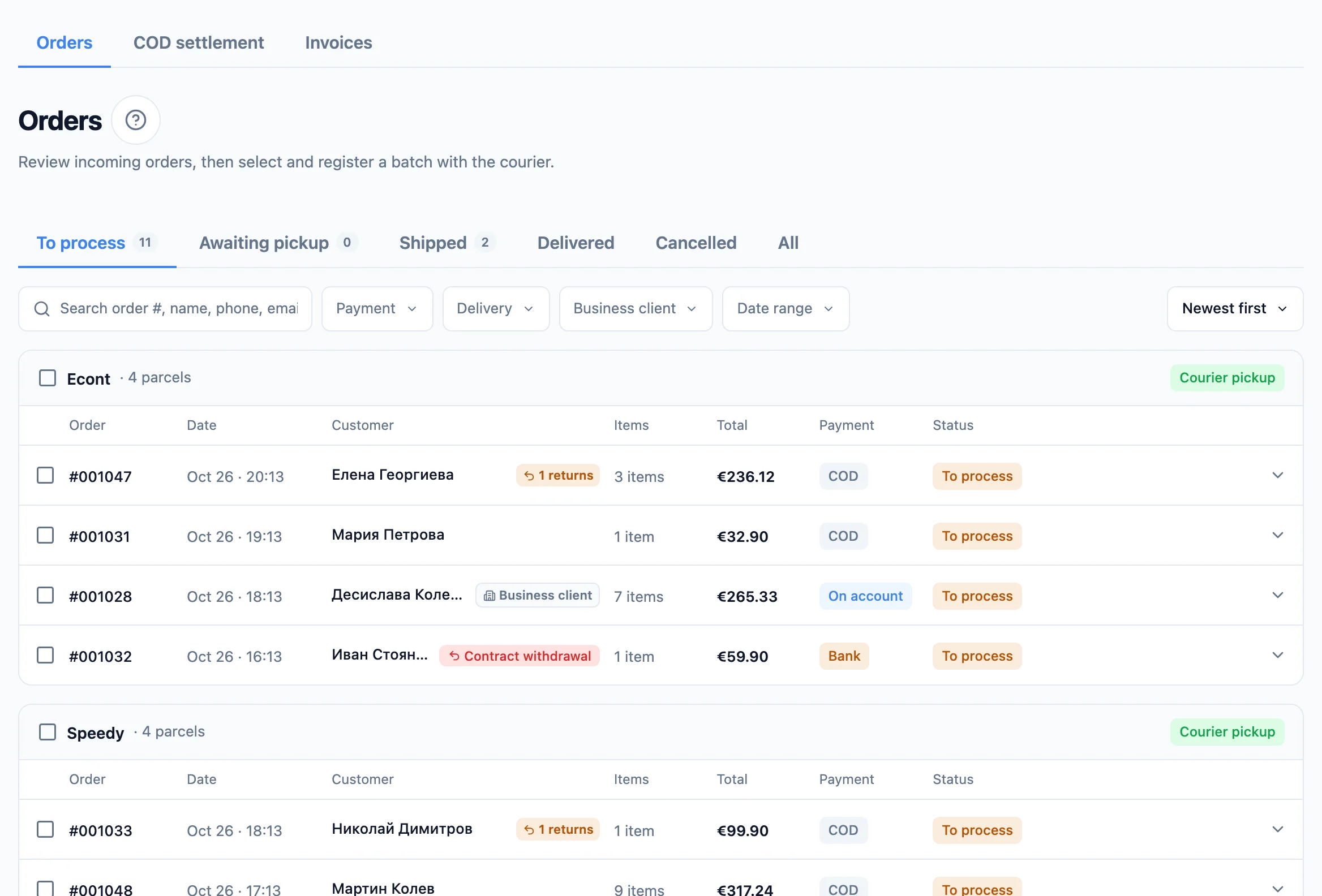
- Expand the order's row to see the items and the customer's details. Several rows can be open at once. Each item shows its SKU beside it, if you set one (see Products) - so whoever packs the order can find the goods. The code is stored as it was at the time of the order, so changing it later never rewrites past orders, invoices or goods notes.
- Edit the contact details (name, phone, email) inline and hit Save changes - handy for fixing a mistyped email. Fields stay editable until a courier label is created.
- Register with a courier - multi-select orders in *To process* and hit Register batch, or register a single order from its row. Registered orders move to *Awaiting pickup*. On registration the customer is emailed the tracking number and the delivery cost.
- Cancel it if you need to - any time up to delivery (from *To process*, *Awaiting pickup*, or *Shipped*). The stock is restocked, any courier label is voided, and a paid card order is refunded automatically.
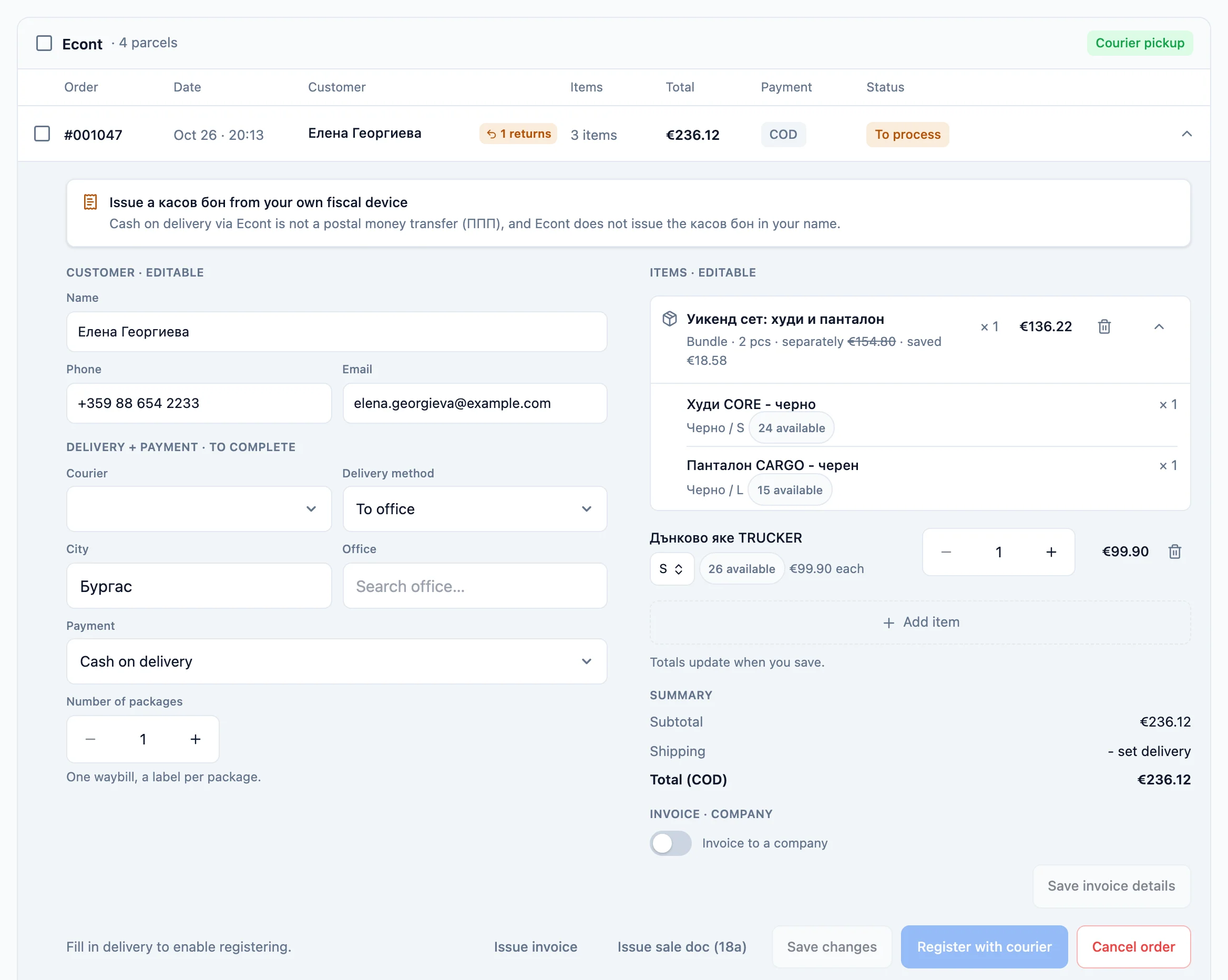
On any *To process* order the expanded row has a Delivery + payment · to complete section: choose the courier and whether it ships to a courier office (then pick the City and Office from the live courier list) or to an address (then fill Address, City and Postcode), plus the payment method - then Save and Register. Fast orders (from the product page's quick-order form) arrive with only contact details and a Fast order badge, so this is where you complete them; on a normal order the section is pre-filled and you just adjust it before registering.
On the same expanded *To process* order you can edit the items before registering with the courier: change the quantity (with −/+ or by typing the number), remove a line (the trash icon), add a product (Add item: search the product, then choose its variant), or swap a line's variant (e.g. Size M → L, Colour black → blue) from the variant chip. Swapping a variant re-prices that line to the new variant's current price; lines you don't touch keep their agreed price. Adding or swapping onto a variant already in the order merges the two into one line with a higher quantity. Personalised products and products with a model catalogue are quantity-or-remove only and can't have their variant changed. They never merge with another line either - two models of one case stay two separate lines. A bought bundle is one line: its name, "Bundle · 2 pcs" (the pieces in one bundle), how many bundles were bought and its price, with the pieces' separate total struck and the saving. Its pieces sit under it with size and stock, no price and no quantity field; the arrow on the right hides them. If a piece is short of stock, the whole bundle gets a red border and opens so you can see it. On a phone the expanded order fits the screen, and each line's count, price and trash icon (a bundle's too) sit on their own line under its name. A bundle is removed whole with its own trash icon, which first asks "Remove the whole bundle?". The same bundle bought twice with different sizes is two separate bundles, each removed on its own. On a shipped or delivered order a bundle shows the same way, read-only; if the customer refused all of its pieces at the door with Econt Избор, its price is struck through. Totals update when you save (stock is reserved oversell-safely and promotions are re-resolved against the new lines). Each line shows how many it can have on this order (N available); if the quantity exceeds that the line turns red (Only N available / Out of stock) and Save is blocked until you reduce it - so you find out before saving, not after. An order whose reserved stock has already been released (for example once the Stock hold in Shipping & couriers ran out) no longer holds any stock, so its lines show no availability and saving it doesn't move stock. Editing is only possible while the order is not yet registered with a courier and is unpaid (cash on delivery, bank transfer, on account, or a card payment that has not gone through). If an edit moves the order over or under your free-shipping threshold, the delivery price is re-quoted automatically on save (for an order with courier delivery chosen).
Quantity-priced lines
A line paid at a quantity price shows its row, for example "Quantity price · 11+ pcs". When you change its quantity, or add or swap a variant of the same product, all of that product's lines are re-priced by the new total - up and down - using the table the order was placed with (later changes to the rows do not affect it). Such a line can hold up to 9,999 pcs.
The delivery price when you complete an order
When you complete delivery on a fast order (it arrives with no delivery chosen) or on an order the courier couldn't price when it was placed, the system re-quotes the price automatically on Save: it asks the courier for the real cost (honouring your free-shipping threshold) and charges it, so an order below the threshold never shows "Free for the customer" by mistake. The price is also re-quoted whenever you change the destination - a different courier, office or delivery address - on any order not yet registered with the courier, so the delivery price always follows where it's going (switching to store pickup clears it to zero). As you edit, the Shipping line in the order summary updates to show the price for the chosen destination - the same one that will be charged on Save (nothing is written until you press Save changes). Only if the courier still can't price it does the order show Awaiting courier price, and the Delivery + payment section grows a Delivery price field - enter it by hand and Save to unlock registering. The customer gets the delivery cost with the tracking email at registration.
If you offer store pickup (Settings → Couriers → Store pickup), it appears as a third delivery option - the customer collects from your shop in person, no courier. Choose Store pickup, Save, then Ready for pickup moves the order to *Awaiting pickup* (Delivery reads "Store pickup", no tracking). When the customer comes in and collects it, hit Mark as delivered.
A persistent filter toolbar helps you narrow the list: a search (by # / name / phone / email / tracking), Payment / Courier / Delivery multi-selects, a date range, and a sort (newest first by default).
Opening one specific order
An order has no page of its own - it is a row that expands here, in the list. So when you open an order by link (from All shops, for instance, if you run more than one shop) you land on this page already on that order's tab, with its number in the search box and the row expanded.
The search is an ordinary filter, not a lock: clear it to go back to the full list. This is what lets an order be found even when it is old and far back in the history.
Warning badges next to the customer name
Beside the customer's name a row can carry coloured badges computed from the same customer's history (matched by email or phone, so a changed email doesn't hide the history):
- "{n} uncollected" (red) - how many of their orders reached a courier office and came back uncollected. The strongest risk signal on a cash-on-delivery order - call to confirm before you ship.
- "{n} returns" (amber) - how many of their orders went through the returns flow. A softer signal: many returns aren't fraud, but worth knowing.
- "Company invoice" - the buyer asked for a company invoice (covered in the invoices section below).
A guest with no email or phone can't be matched and carries no badges.
Apart from the history, "Contract withdrawal" (red) means the customer withdrew from this order and the withdrawal still waits for your decision - see [A withdrawal on an order](#a-withdrawal-on-an-order) below.
Registering a batch
Selecting orders in *To process* reveals Register batch. The dialog groups them by courier and shows how you hand each courier's parcels over - which follows the Parcel handover setting you picked per courier (Settings → Couriers):
- Courier pickup (ZweiHost books it) - a pickup-day picker appears: for Speedy the dialog loads the courier's own bookable days and shows them as buttons ("Today", "Tomorrow"…), including the same-day request cutoff; "Other date" and the optional From/To window remain (blank = 09:00–17:00). If the days can't be loaded you simply pick a date yourself - registration never depends on this check. One pickup request is sent for the whole group.
- Office drop-off - no pickup inputs. Labels are created; you carry the parcels to the courier's office yourself.
- Portal pickup - no pickup inputs. Labels are created; you book the pickup yourself in the courier's own portal.
For Econt, Speedy and Pigeon Express each courier lists its orders with their number of packages (for example "3 parcels · 4 packages") - change it with −/+ before registering if an order ships in several boxes. An order to a locker stays at 1 package (see below).
Incomplete fast orders with no address are skipped with a warning; the rest still register. Orders with a withdrawal from the contract and orders with a pending cancellation request are held back too - each group with its own warning, and the message after registering says how many and why. Registration is per order - if one fails it keeps a Retry button without blocking the others. Either way the registered orders move to Awaiting pickup, where you can select several and hit Print labels to print the labels in one go, and - once the parcels are on their way - Mark as shipped (one order or several at once) to move them to *Shipped*. In *Awaiting pickup* the orders are grouped by courier so you hand parcels over courier-by-courier; the courier row's checkbox selects every order for that courier at once.
Where *To process* orders come from
If Settings → Couriers → Order fulfilment is on Confirm and batch, every new order waits here unregistered until you register it - that is the whole point of the mode. On Auto-register orders are registered the moment they are placed, so they appear in *Awaiting pickup* instead and *To process* only holds fast orders and ones whose registration failed.
Cancelling an order with a label depends on the courier
If a courier shipment was already created, cancelling first voids it with the courier, and the order is cancelled only if the courier confirms. If the courier refuses (e.g. the parcel was already collected), the order is left unchanged and you'll see the reason.
Splitting an order (Speedy's касов бон)
When Speedy issues the касов бон for you, its бон holds at most 20 lines - 19 products and the delivery. If a cash-on-delivery order in *To process* has more different products than that (each variant counts on its own, a free gift does not count), a window opens before registering with Register with courier or Register batch: it explains the limit and offers Split the order. In a batch you can also Register without that order - the other selected orders register, and you split it afterwards. The same button sits under the courier's refusal in an order that automatic registration already sent back.
- In Split order, tick the products that go to the new order. The ones after the 19th are ticked for you. Whole lines move - a product's quantity is never divided, and a bundle is one row with its pieces under it and moves as a whole.
- On the right you see what stays and what goes: the number of products, the goods, the discount split by value to the cent, the delivery and each order's cash on delivery. The two cash-on-delivery amounts add up to the order's.
- Each of the two orders can have at most 19 products and at least one. Until then Split the order is off and the window tells you how many more to tick.
- The new order takes the next number and has the same customer, address or office, courier, payment and date as the original. The delivery stays on the original; the new order's delivery is €0 - the second waybill is on you.
- Register the two orders separately, like any other. Each goes with its own waybill and cash on delivery and gets its own касов бон from Speedy.
The customer gets the email "Order arrives in two parcels" with each parcel's number and amount - the template is in Emails, and it does not mention the касов бон. If the order has no email, the template is switched off or the send fails, the message after the split says the customer got no email - call them about the second parcel.
Under the number the two orders show "Split · #…" and "Split from #…", and a note in the new order explains the €0 delivery. The withdrawal period of both orders runs from the delivery of the later parcel.
Which orders can be split
Only a cash-on-delivery order in *To process*, before it has a waybill, with no invoice, sale document or goods note issued and no pending cancellation request or withdrawal. An order is split only once.
Handed over in person and Return to processing
Sometimes the customer comes for the order, or you take it to them yourself, instead of sending it by courier. Open the order in *To process* and press Handed over in person. Every shop has it - store pickup does not have to be on.
- In the window pick the Hand-over date - today by default. It cannot be in the future or before the order date. It becomes the order's delivery date, and that decides which monthly НАП audit file the order goes in - pick the day the customer got it.
- An unpaid order (cash on delivery, bank transfer, on account) loses its delivery: with no courier there is no delivery to pay for. The window shows the old and the new amount. A paid order (by card, or a bank transfer you have received) keeps the delivery it paid for - to give it back, refund it to the customer. If the order already has an invoice or goods note that includes the delivery, annul it first, then hand the order over and issue a new one.
- Cash on delivery handed over in person is cash paid to you: issue a касов бон from your own fiscal device. The note in the order reminds you.
- The order moves to *Delivered* with the badge "Handed over in person". *Delivery* shows the hand-over date and the courier it was ordered with. No waybill is issued, and the order does not wait for a cash-on-delivery payout.
An order with a waybill the courier has not collected yet (the *Awaiting pickup* tab) first goes back with Return to processing: the waybill is cancelled at the courier and the order is in *To process* again - edit it, register it again or mark it handed over in person. If the courier already has the parcel, it refuses the cancellation, the message gives its reason in its own words, and the order stays as it is.
When these buttons are missing
Handed over in person is not offered on a store-pickup order (it has Mark as delivered), on an unpaid card order or on a test order. Return to processing is not offered in *Shipped* - the courier has the parcel already.
Several packages on one waybill
If you pack an order in several boxes, tell the order - it ships on one waybill, the courier prints a label for each package ("1 of 2", "2 of 2") and the cash on delivery is collected once. It works with Econt, Speedy and Pigeon Express, and the delivery price does not change.
- Before registering - in the expanded row of a *To process* order, Number of packages sits under Payment. Set it with −/+ and press Save changes. In Register batch you can also change it for each order.
- After registering (for example on Auto-register, where the waybill is created at checkout, before you have packed) - in *Awaiting pickup* the Delivery block shows Packages N · Change. Pick the new number and save:
- Econt and Speedy update the same waybill - the number and the price stay. Print the labels again: one per package.
- Pigeon Express cannot change a waybill, so we issue a new one: the new waybill is created first, then the old one is cancelled. The tracking number changes and the customer gets an email with the new number. The same happens if Econt or Speedy refuse the change (for example Speedy after a pickup was requested).
- If the courier has already accepted the parcel, no change is possible - you see the courier's answer and the number of packages stays as it was.
- To a locker (Econtomat, a Speedy automat, a Pigeon locker) a parcel is always one package - the field is locked at 1, and moving the order to a locker sets it back to 1. Sameday and BOX NOW orders show no field.
- BOX NOW, automat drop-off - in place of the package count under Payment is the Box size field (Small, Medium or Large), with a line under it saying where the size comes from: the product dimensions, BOX NOW's Default box size, or "Chosen by you for this order". Change it and press Save changes; in Register batch you change it per order too, in place of the package count. Once registered, the order shows "Box" with the size the parcel was sent to BOX NOW with, and it no longer changes - even if you later change the default box size or the product dimensions. If the ZweiHost team cancels the waybill at your request, the order goes back to "To process" with no size kept: on the new registration the size is worked out afresh (from the product dimensions or the default) and you can choose another. Orders registered before this change show no such row. The BOX NOW group in the list reads "Automat drop-off".
A new waybill after a requested pickup
When Speedy issues a new waybill because a pickup was already requested, the new waybill is not part of that request. Check the request in Speedy's portal before the courier arrives.
Speedy's касов бон and a big order
If Speedy issues the касов бон for you, its бон holds at most 20 lines, delivery included. On an order with more pieces than that, each product becomes one line with its count (for example "Чаша x5"). An order whose different products (each variant counts on its own), plus delivery when it is part of the cash-on-delivery amount, come to more than 20 lines is not sent to Speedy: the order says "Speedy's касов бон holds at most 20 lines…" - write to us.
At-office collection (the Shipped tab)
Office parcels stay in *Shipped* until the customer collects them. The row shows In transit or At office · N days (amber, turning red as the auto-return deadline nears). The Awaiting collection toggle filters to just these. From the expanded row you can Mark collected or Send a pickup reminder. You can also select several at-office parcels at once and Mark collected or Send a pickup reminder in bulk - in-transit selections are skipped. Every registered order's row also has a Track parcel button - a column in the row itself, so you can follow the delivery without expanding it.
Reminders also go out on their own: Day 1 / Day 3 / Day 5, counted from the moment the courier reports the parcel at the office - the same moment that puts the At office · N days badge on the row. Which days are on is set in Settings → Couriers (see Shipping). Send a pickup reminder sends the next one straight away without waiting for the schedule. Orders delivered to an address never get these emails, and store pickup starts counting when you press Ready for pickup. Once the parcel is collected - you press Mark collected, or the courier reports it delivered - the At office · N days count stops and no further reminders are sent; a Delivered order never carries this badge.
Office parcels auto-return
If the customer doesn't collect within the courier's window (usually 5–7 days), the parcel returns at your cost. Watch the amber/red badges in *Shipped* and remind customers in good time.
Once Speedy reports the parcel as delivered back to the sender, the order becomes Cancelled on its own and the stock comes back, as with Cancel order. Such an order is not filed to НАП as a sale. Don't mark it as received.
Partly accepted orders (Econt Izbor)
If you turned on Partial acceptance (Izbor) for Econt (see Shipping), a customer can keep only some of the items. Econt delivers the parcel, collects less than the cash on delivery and returns the rest to you in a new parcel. The order stays in Delivered with a Partially accepted badge, and the expanded row shows the Partial acceptance (Izbor) block above Items:
- what Econt collected of the cash on delivery, and the return parcel number (a tracking link);
- one Returned counter per item. When only one set of items makes up the difference, we tick it for you; when several do (two items at the same price, say), we tick nothing and say why.
When the return parcel arrives, check what is inside and press Confirm returned items - it is enabled once the ticked units add up to exactly the difference. The returned units go back in stock, their line shows Not accepted and the Summary gains Not accepted at delivery - the sale becomes what the customer paid. Items not accepted were never sold: they stay out of the reports and the audit file, they are not a return and the customer cannot request a return for them. COD payouts are matched against the collected amount, so a partly accepted order is not flagged as a mismatch.
Receipt and invoice. Izbor is offered only when you issue the касов бон yourself - with "Econt issues it for me" the parcel gets plain review. If you issued a receipt for the full cash on delivery from your fiscal device before shipping, issue a СТОРНО for the items not accepted from the same device, even though the customer paid nothing for them. The сторно names the original receipt and the reason. Do not issue a second receipt for just the paid amount without reversing the first - that counts the paid items twice. If an invoice was issued for the order, the items not accepted are corrected with a credit note (which we do not support yet) or by annulling it and issuing a new one - your accountant decides which. Confirm returned items changes the order, not the receipt or the invoice: that correction stays yours. Ask your accountant, too, exactly when to issue the сторно.
Customer cancellation requests
A customer can ask you to cancel an order while it hasn't been handed to a courier. Requests appear under Orders → Cancellations («Анулирания» in Bulgarian).
While the withdrawal function is on, the customer's account and new order emails offer the "Withdraw from contract here" link instead of a cancellation request - the withdrawal goes to Contract withdrawals. Requests still arrive here from links in older emails and, if you switched the function off, from the customer's account and the link in the confirmation email (works without an account too).
You decide. The request doesn't cancel anything on its own, because you may already have phoned the customer and packed the parcel.
An order with a pending request won't be registered with a courier
Until you answer, that order is skipped by "Register batch". So you can never pay for a label on an order the customer believes is being cancelled.
- Cancel the order - stock goes back, any label is voided, and a card payment is refunded automatically. The customer is emailed.
- Keep the order - it proceeds as normal. Say why - otherwise the customer's only remaining option is to refuse the parcel on delivery, which costs you the return leg as well.
Once the parcel is with the courier the cancel link stops working, and the customer is told what they can do instead.
A withdrawal on an order
When a customer withdraws from the contract through "Withdraw from the contract here", the order shows it while the withdrawal is *New* or *In progress* in Contract withdrawals:
- The row carries the red "Contract withdrawal" badge.
- The expanded order, not shipped yet, opens with a red box: "The customer withdrew from the contract on … (withdrawal № …) - do not ship this order." with a "View the withdrawal" link. Press Cancel order: stock comes back, a registered waybill is voided, a card payment is refunded automatically and the withdrawal moves to *Closed*. If the order was paid, the box also says by when you must refund - 14 days from the withdrawal.
- A withdrawal from some items only - the box lists which. Remove them from the order before you register it, then mark the withdrawal closed in the list.
- The parcel is already on its way - the box is amber: the customer may refuse the parcel at the door or send it back after delivery.
- A delivered or cancelled order shows no box - you carry on in the withdrawals list.
A withdrawn order is not registered with a courier unless you confirm
Register with courier on such an order first asks "The customer withdrew from this order" - Register anyway ships it despite the withdrawal, and the customer may refuse the parcel. Register batch skips it with a warning, and the automatic label retry never ships it on its own.
What the delivery costs you
Open an order and, under the delivery block, you'll see Courier cost:
- Customer paid - the delivery you charged. If you've set your own price for this courier, it's marked *your rate*.
- Delivery - what the courier charges you for this parcel.
- Cash-on-delivery fee - the courier's commission for collecting the money. Shown only on cash-on-delivery orders.
- You pay the courier - the sum, i.e. what the courier's invoice will say.
The two figures may differ, and that's expected: with your own rate table, the customer pays your price while the courier bills its own. The gap is what you make or lose on delivery - which is why they sit side by side.
When delivery is free for the customer (for example the order is over your free-delivery threshold), Customer paid is replaced by Delivery paid by: Shop - free for the customer, and the Shipping line in the Summary reads Free for the customer. The customer never sees what that delivery cost - not at checkout and not in the emails (they say "Delivery price: Free"). What you pay the courier goes into Expenses when the Courier costs (delivery) source is on in Finance settings (the gear in Expenses).
Fetched when you open the order
We ask the courier only once you expand an order, so the list stays fast. For BOX NOW we don't ask at all - it publishes no prices over its API and bills you by your contract.
Stock
In the cart and in the checkout summary, a shopper can type any line's quantity straight in. Type more than is in stock and the quantity is lowered to what is available, with a note under the line saying why (for example "Only 7 available"); one line takes up to 100 pieces (up to 9,999 with quantity pricing).
Any line, bundles included, can be removed whole, with all its pieces, in one tap: in the cart with Remove, and in the checkout summary with the line's trash icon, on a phone and on a computer. Tapping "−" on the last piece asks first, so it never happens by accident.
When an order is placed, the products' and variants' stock goes down - fast orders included: a fast order reserves its items the moment it's submitted, exactly like a checkout order. When you cancel the order (or the stock hold in Settings → Couriers runs out), exactly what was reserved goes back.
You can't oversell
Orders above the available quantity are rejected automatically, so stock can never go below zero. If an item sells out while a shopper is filling in a fast order, the form tells them it's sold out (or how many are left) instead of taking the order.
Payment
Cash on delivery, bank transfer, and card payment - via Stripe or a Borica virtual POS - are supported. Card details are never stored on your side - they're entered on the card provider's secure page. Bank transfer is offered only once you fill in Bank transfer details in Settings: without them the customer would have nowhere to pay, so the method is not shown.
On account (pay against invoice) is a fourth method, only for business clients who pay once a month: such a client, signed in, orders without paying, and the order goes on their monthly summary invoice. No cash on delivery is collected, the bank-transfer discount does not apply and no fiscal receipt is owed.
Who issues the касов бон. A cash-on-delivery order's detail says who issues its касов бон. If you chose "… issues it for me" on the courier's tab, the note says the бон is not your obligation: with Econt under the agreement whose number the waybill carries, with Speedy from the waybill's items, and with Pigeon Express under your agreement with Pigeon Express (the waybill carries nothing extra, so choose that option only if you have signed the agreement).
To accept cards, connect a Stripe account or a Borica virtual POS from Settings → Billing (the “Card Payments” add-on). Card orders show a payment status: Awaiting payment until the customer pays, then Paid. Funds settle directly into your own account with the provider (the platform takes no commission).
When you cancel an order that is still Awaiting payment by card through Stripe, ZweiHost first closes the payment at Stripe, so the customer cannot pay an order you already cancelled. If the customer is paying at that very moment, the cancel stops and the BackOffice tells you to wait for the payment to be confirmed - then cancel the order and the amount is refunded. If Stripe does not answer, the order stays as it was and you can try again in a moment.
A card order's payment method is fixed: in the Delivery + payment section the payment field stays locked on Card and can't be changed, because a card charge only ever comes from the provider's secure page at checkout. This keeps an already-paid order from being switched to cash on delivery by mistake and collected a second time at the courier.
Don't fulfil an "Awaiting payment" order
The confirmation email, courier label and invoicing fire only after payment succeeds. While the status reads "Awaiting payment", the customer has not paid yet.
Refunds (card orders)
For card-paid orders, the customer can request a refund. Requests appear in Orders → Refund requests, where you approve or decline them - the money is returned through Stripe only after you approve. Refunded orders get a Refunded status you can filter by in Reports → Orders.
Reports and export
For analysis and accounting, use Reports → Orders - a filterable table you can download as CSV or Excel, with the regular and sold price per line. You can also filter by the Refunded status to find fully refunded orders - an order with only part of it returned stays paid (see Returns).
Invoices
You can issue an invoice for any order. On the order, click Issue invoice - the system assigns the next number, generates a PDF and emails the invoice to the customer. Numbers are sequential and gap-free per business, so cancelled orders never consume a number. Re-issuing returns the same invoice (no new number is assigned) and does not send it a second time.
- After issuing, an Invoice block appears on the order detail under Summary: the number, the issue date, a Download invoice button (PDF, in the order's language) and whether the customer received it.
- Sending by email. The email goes to the order's email, in the invoice's language, with the invoice attached as a PDF - the same file you download. It is sent in your shop's name, and a customer's reply reaches your contact email.
- Sent (green) - the block says to which address and when. Send again asks you to confirm and shows the last send.
- Not sent (amber) - the email did not go out (a wrong or blocked address, for example). The invoice stays issued. Press Send to customer, check the address and try again.
- Not sent (grey) - the invoice was issued before invoices were emailed. Send to customer sends it at once. Older invoices are never mailed on their own, only when you press the button.
- A wrong email. The address can be corrected in the send dialog. The new address is saved on the order and the email goes to it - also on an order with a waybill, whose customer details are otherwise read-only.
- The customer can also download their own invoice from their account → Orders.
- Seller details (legal entity, company number, VAT number, responsible person) and VAT registration are set in Settings → Invoicing. If you're registered under the VAT Act the invoice shows the tax base and VAT; if not, it carries the Art. 113(9) note.
- Your shop's letterhead. Every page carries your favicon and shop name at the top, and your domain, phone, email and the page number ("page 1 of 2") at the bottom. They are taken from Settings - display name, your own domain, contact phone and email - and from the Site editor › "Store" › "Header" (the favicon) at the moment of issue and stay on the invoice for good: change the favicon or these details later and invoices already issued do not change. Invoices issued before the letterhead was introduced show the page number only.
- Company invoice. If the buyer is a company, at checkout they can tick "Invoice to a company" and enter a company name and ЕИК (required), plus an optional VAT number, responsible person and registered address. The invoice then shows the company as the recipient (Получател), with the individual kept as the contact. In the orders list such an order carries a Company invoice badge until you issue the invoice. You can also enter or correct the company details on the order detail (the Invoice · company block) - but only before you issue the invoice; once issued they are final and are corrected with Annul and issue new (see below).
The legal details are your responsibility
We generate the document from the data you entered. Checking that the invoice carries every detail required by law remains your responsibility - consult an accountant if in doubt.
- In Settings → Invoicing you can set a start number to continue an existing paper series - only before your first invoice is issued.
Annulling and issuing a new invoice
An issued invoice is never edited. If it is wrong, it is annulled - it keeps its number and stays in the order's history - and, where needed, a new one is issued under the next number (Art. 116 of the VAT Act). The Invoice block has two buttons for this, on their own row under Download invoice:
- Annul and issue new - when the sale stands but the invoice is wrong: the recipient's details, your own details, the VAT or something else. Choose a reason - it is recorded on the annulment protocol only and does not change the form, which is the same for every reason. In the dialog you correct:
- Recipient - the person's name, address, city and postcode, or with Invoice to a company - the company, ЕИК, optional VAT number and responsible person, and the registered address. Changes are also saved on the order.
- Supplier - company, ЕИК, VAT number, responsible person and Company address (for invoices). Changes are saved in Settings → Invoicing and apply to every new invoice. If the company address is empty, the dialog warns that the invoice will print the shop address, but does not stop you. Only a user with access to Settings → Invoicing can change the supplier details - for everyone else they are read-only.
- Order email - the new invoice goes there; a corrected address is saved on the order. If the order has an email, the field cannot be left empty: the new invoice is always sent to the order's email.
The lines and amounts do not change - they come from the order. The new invoice gets the next number, today as its issue date and the order date as its tax event date, and names the invoice it replaces. The customer receives it by email; if the annulled invoice was to a company, the email also carries the annulment protocol. It all happens at once: if the new invoice cannot be issued (your company name or ЕИК is missing, for example), nothing is annulled.
- Annul - for an invoice that should never have been issued (the default reason is Issued by mistake). The customer gets an email saying the invoice is annulled (with the protocol, if it was to a company). The order is left without an invoice and Issue invoice comes back in case you need a new one later. If the notice does not reach the customer, the block says so and offers Send the notice again, where the address can be corrected.
Annulment cannot be undone: an annulled invoice cannot be restored. The email to the customer never states the reason.
Under Annulled the block lists every annulled invoice of the order - when and why it was annulled and what replaced it - with Download the annulled invoice and Annulment protocol. Sign the protocol and keep it with your accounting documents; it is not needed if neither party has booked the invoice. The customer sees the same history in their account → Orders, with the annulled invoice and the protocol to download.
This is how an order's own invoice is annulled. A business client's summary invoice is annulled from their page or from the Invoices tab - see Business clients. Goods notes are annulled from their block on the order - see Goods issue note.
The Invoices tab
Once the shop has issued its first invoice, Orders gets an Invoices tab («Фактури»). It shows one month (Bulgarian time) - invoices for single orders and summary invoices, in number order, with the date, the order or business client, the recipient, the amount and the state: Sent with the day, Not sent (amber when a send failed), Annulled or Annulled → No. of the new invoice. A summary invoice sent before the platform began recording summary sends shows Issued. The arrows and the list change the month, and Download Excel saves the month as it is on screen.
On each row the download icon downloads the invoice, and the … menu offers Send again (or Send to customer), Annul and issue new and Annul - the same dialogs as on the order. For a summary invoice the menu offers the summary invoice's own Annul and issue new and Annul (see Business clients), and to users who can open Customers → Business clients also Send again (after a confirm saying where it went last and where it goes now: the client's invoice email, else its account email). An annulled row offers its Annulment protocol. The order number opens the order. Goods notes stay on the orders.
Orders from business clients
If you have marked the customer as a business client (see Business clients), their orders are not invoiced one by one. They go on a single summary invoice for the month.
- In the orders list such an order carries a Business client badge. The Business client filter above the table narrows the list to one company, so you can review what they owe you for the month.
- If the client pays once a month, their order also carries an On account badge, and the Payment filter has an On account choice. In the Delivery + payment section you can change on account to another method; not the other way round - only the customer picks on account, at checkout.
- On the order detail, in place of the Issue invoice button, it reads Goes on the <month> summary invoice for <company>. That is deliberate: an order belongs to exactly one invoice, never two.
- If you do need to invoice that one order on its own, press Invoice separately. The order leaves the summary invoice and the Issue invoice button comes back. Put back on the summary invoice reverses it.
- An order you have already issued an invoice for stays as it is - it is not added to a summary invoice, and nothing changes retroactively.
- Some of a business client's orders do not go on the summary invoice, and the detail says why: a cancelled order, a test order, an uncollected card payment, or a fully refunded order. Orders placed before the date you invoice the client from do not count as theirs at all.
- The summary invoice itself is issued from Customers › Business clients - open the client and press Summary invoices. There you pick a month, review which orders go on it, and issue the document.
Once issued, the order is locked. As soon as an order is itemised on an issued summary invoice:
- Invoice separately refuses to remove it. Removing it would not take it off the document - the invoice already names the delivery - it would only make the order's own state disagree with the tax document covering it. The message names the invoice number.
- Its line items can no longer be edited. The same now applies to an order with its own invoice. An issued invoice is an immutable copy of what was sold; changing the order underneath it does not change the document, it only makes the document a false description of the order it names. Wrong details on an invoice are fixed with Annul and issue new; a change to the items sold needs a credit note, which we do not support yet.
- The company invoice details on the detail are final too, exactly as with a separate invoice.
Goods issue note
A goods issue note (стокова разписка) is a commercial goods-handover document that can also serve as a primary accounting document. It is issued for the orders of a business client whose summary invoices are one line per order: the system issues it together with the summary invoice, assigns the next number (a separate series from invoices) and generates a PDF. An order has at most one valid note.
- The note lists the items (with their SKU under the name, where there is one) with quantities, unit prices and value, the VAT treatment (like the invoice - tax base and VAT if you're VAT-registered, otherwise the Art. 113(9) note), the order number, and Issued by / Received by signature lines.
- Seller details and VAT registration come from Settings → Invoicing (the same as the invoice). You remain responsible for the details required by law.
- The note carries the same letterhead as the invoice - logo and shop name at the top, contacts and the page number at the bottom, fixed at the moment of issue.
- The goods note is downloaded from the BackOffice; unlike the invoice it isn't offered for customer download.
Annulling and issuing a new goods note
On the order detail, the Goods note block shows its number and date, Download goods note and Annul and issue new. Choose a reason: the old note is annulled and keeps its number, and the new one takes the next number of the goods-note series, with the current order details and Settings → Invoicing. A goods note is not a tax document - there is no annulment protocol and no email to the customer. Annulment cannot be undone; under Annulled every annulled note stays downloadable.
- Cited by a summary invoice. While the order is on a live summary invoice the button is off, and a note points to the client's summary invoices: replacing the summary invoice re-issues the notes on it too, so it cites the new numbers (see Business clients).
- Together with the order's invoice. If the order also has its own invoice, that invoice's Annul and issue new dialog has a Re-issue the goods note too switch - on by default. The note is then replaced in the same act and describes the same corrected order.
Sale document (alternative regime)
When your shop is in the alternative regime (see Fiscal receipts), ZweiHost itself issues a sale document for card, bank-transfer and on-account orders and emails it to the customer. In the order detail you see Download sale doc (18а), or - if the automatic issue did not go through - Issue sale doc (18а). With "A document for every order" on (ZweiHost turns it on on request), every cash-on-delivery or store-pickup order placed after it was turned on gets one too - its касов бон is still required. An order placed before that gets no document. At the top of an expanded order, a note says whether to issue a касов бон for it and why - for every order (see "Should I issue a касов бон?" in Fiscal receipts). Once you upload Speedy's report in COD settlement, the note gives the number of the касов бон Speedy issued, or warns when there is none or one was probably issued twice. A cash-on-delivery order placed before the "No" to the own-fiscal-device question ships as plain cash on delivery, and the note says its бон stays yours.
COD settlement (reconciliation)
If you accept cash on delivery, the courier collects the money from the customer and pays it out to you later. In the COD settlement tab (on the Orders screen) you pick the courier and upload its COD payout report exactly as the courier gives it - Excel (.xls or .xlsx) or CSV. Drop the file on the box or press Pick a file - the upload starts at once, with no separate button. The system:
- matches each line by waybill number and marks the matching order paid out;
- flags discrepancies - an order whose amount differs, or a line with no matching order (for example a parcel you created directly with the courier). For an amount mismatch, View order opens that order in the orders list;
- from Speedy's report, also records the касов бон Speedy issued in your name for each matched order - number, date and amount (see below).
Which report to upload:
- Speedy - in MySpeedy, download the COD payout report (file
ReportWaybillPayments….xls) and upload it unchanged. A line appears in it once Speedy has paid the amount out. If an order's waybill was issued again, the order is still found: Speedy keeps its ZweiHost reference in the report. - Econt - the опис from e-Econt › COD payments.
The courier picker lists Econt and Speedy when you use them. A courier you have switched off stays in the picker while you have cash-on-delivery orders with it from the last 90 days - their payouts keep arriving.
A refused file - nothing is saved
A file is accepted whole or not at all. If it is another courier's report, not a payout report, or can't be read (damaged, password-protected, empty, or with a касов бон cell that is not in the form number/date/amount), the screen says why and nothing is saved. Pick the right courier, or download the report again and upload it unchanged.
The касови бонове from Speedy's report
In Speedy's report, the column "Касов бон от името на клиента" holds the number, date and amount of the касов бон Speedy issued in your name at delivery. On upload, ZweiHost records it on the order:
- in the expanded order, the note says "Speedy issued касов бон No. … of … for this sale in your name";
- the receipt stays your record for the order: in the НАП audit file a cash-on-delivery order goes in without a document number, so the receipt's number is not in the file and you don't need to type it (see Fiscal receipts).
After the upload, the box reads "Report uploaded and recorded": how many orders were paid out, how many receipts were recorded, how many lines are not from ZweiHost and how many need attention. Below it are only the lines that need you:
- different receipt number - the order already has a receipt typed by hand with another number. The typed one stays in the НАП file until you pick Replace with … (the receipt from the report takes its place) or Keep the typed one (we stop asking);
- the number is already in the month's file - another order delivered that month already has the same number (typed by hand, a sale document, or another receipt from the report). The receipt is recorded on the order but does not go into the file while the number repeats. Most often it is a typo - check the other order's receipt; if both receipts are genuine (from different Speedy devices), write to us;
- Speedy did not issue a receipt - the waybill asked Speedy to issue it, and the report has none for it. The amount was collected without a касов бон: issue it yourself and check your annex with Speedy;
- double receipt - the order went out as plain cash on delivery ("Issue a касов бон"), and Speedy issued a receipt. If you issued one too, cancel yours.
The last two are only warnings - nothing is stopped or changed. They appear only for orders whose waybill recorded who issues the receipt. The order's note carries the same warnings. The result stays on screen until the next upload; a resolved line disappears. If you upload a report that partly repeats an earlier one, the receipts already recorded don't change. Receipts from Econt's report are not read yet - they will fill in once we confirm the report contains them.
Separately from the report, ZweiHost checks the delivery status of your recent orders with the couriers every 30 minutes and marks the delivered ones. For Econt and BOX NOW that also marks the COD as paid out, and for Pigeon and Speedy once a day, with no report.
Automatic payouts from Speedy
Every morning ZweiHost fetches Speedy's payouts for the last 7 days (up to yesterday) and marks your Speedy cash-on-delivery orders as paid out - with nothing to upload. An order with a different amount appears under Discrepancies, as with an upload. Parcels that are not from ZweiHost (for example made directly in MySpeedy) are not shown. Each payout is recorded once. Speedy has to be connected to your account in Settings › Couriers.
- In the list of recent imports under the upload box such a line is marked "automatic", and uploaded reports "uploaded file".
- Receipts do not come automatically - Speedy does not provide them this way. If Speedy issues the receipt in your name, keep uploading the MySpeedy report: it records the receipts (see above). The result on screen always comes from the last upload - an automatic payout does not replace it.
Re-uploading is safe
Uploading the same file a second time creates no duplicates. Couriers pay out the full collected amount and bill their COD fee on a separate invoice, so that fee isn't shown here.
Tips
- Update the status promptly - it keeps customers informed.
- Check stock after a big promotion.
- Export monthly for your bookkeeping.
Next step
Not every order stays sold. See how to handle goods coming back in Returns.