Which couriers are available to connect depends on your subscription plan - the Settings → Couriers screen lists only the ones your plan includes. The Pro plan includes Econt and Speedy; Business and above adds Sameday, BOX NOW and Pigeon Express. The Solo plan includes no couriers. See Billing to change your plan. Connect your Econt, Speedy, Sameday, BOX NOW, or Pigeon Express account so orders automatically get a shipping label and a tracking number.
This begins the "get ready to sell" phase. Delivery is the first of three things you need before a real order can go through - the other two are your email notifications and your legal pages.
Setup
Each courier's tab holds separate cards, each with its own Save button: the courier card, the Delivery pricing card and, for Econt and Speedy, the At the customer's door card. They save independently - changing prices never re-sends or re-verifies the credentials.
Setup is a two-step flow. First you connect the courier - enter only its API credentials and save. Only then does the card reveal the rest: parcel handover, pricing, payment methods and the Hide toggle at the top right. There is no separate "Enable" step - once a courier is connected, has a price and your sender address is filled in, it is offered at checkout automatically. The Hide toggle only lets you temporarily hide a ready courier (a lapsed contract, an outage) without deleting its settings; it is off by default, so the courier is visible. Hiding takes effect at once, even for a shopper who already has checkout open: an order with the hidden courier is not accepted and the shopper is asked to pick another. Orders placed before that are still fulfilled with the courier as usual. In demo mode the toggle has no effect - see the Demo mode section below.
- Go to Settings → Couriers.
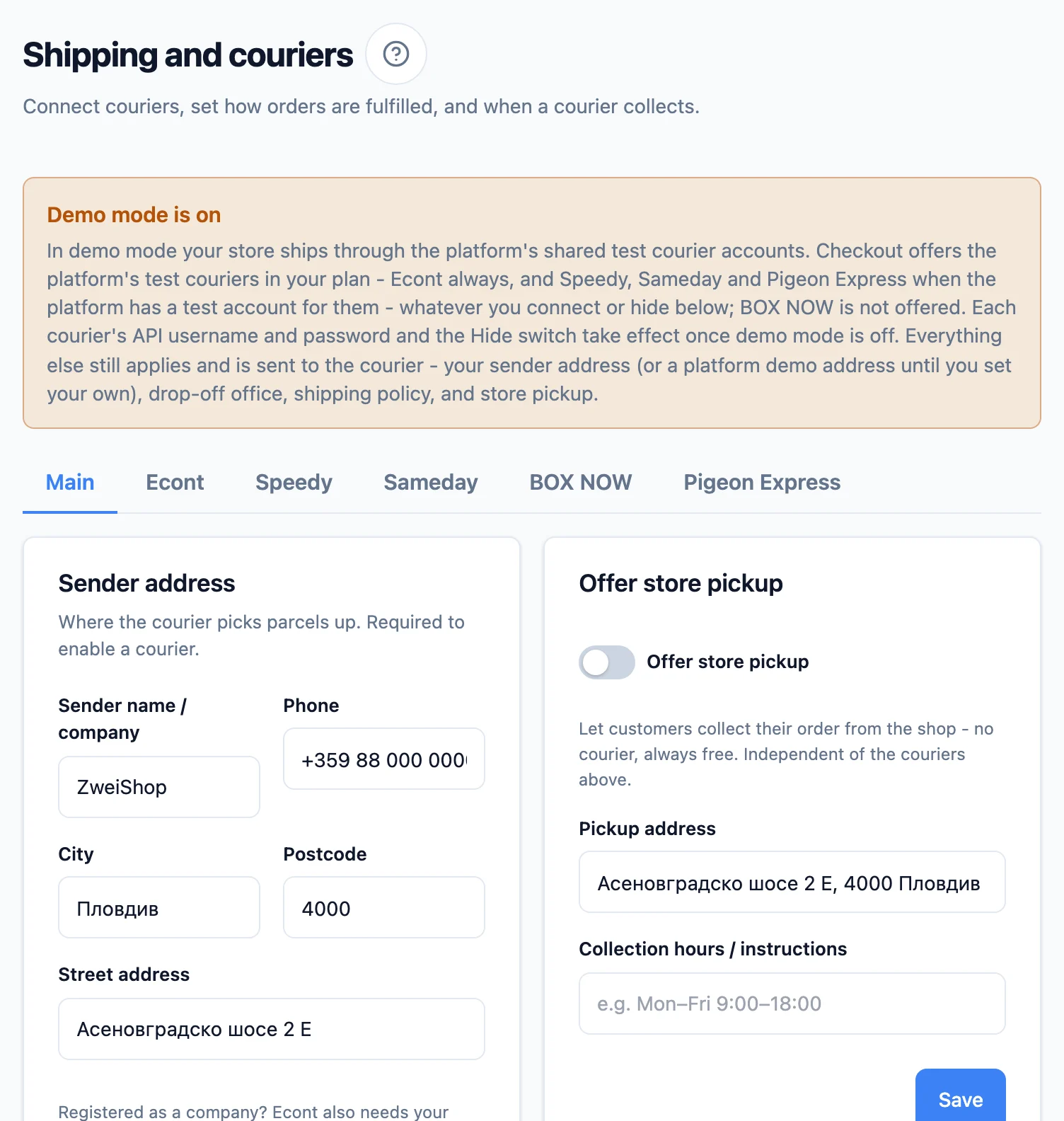
- Fill in the sender address (where the courier collects parcels) - required before a courier can be offered at checkout.
- For each courier, enter its API credentials (issued by the courier): a username and password for Econt, Speedy and Sameday, a Client ID and Client secret for BOX NOW, an API Key and API Secret for Pigeon Express. The password is stored encrypted and never shown again. On save we verify the credentials live against the courier (a quick request to it) and won’t store credentials we can’t confirm - so a wrong password can never be saved. If the credentials are wrong or the courier is temporarily unreachable, the save is rejected with a clear message. (To take a courier off checkout when its contract has lapsed or its API is down, use the Hide toggle or remove its password - neither re-checks the courier. Leaving the password field blank on a connected courier still re-verifies it.)
- Once the courier is connected, the card shows parcel handover (who collects the parcels and where - this is where Sameday's sender pickup-point and the BOX NOW warehouse live), payment methods and pricing. Optionally set a default parcel weight, default parcel dimensions and a handling fee. Who pays the delivery and whether it is free are set per payment method - see Who pays the delivery and Free delivery below.
All of a courier's fields - the credentials, the parcel handover and the cash-on-delivery receipt - sit in one grid (one under another on a phone). Each field's explanation is behind the «?» beside its name: tap it to read it, and click outside it (or press Escape) to close it. Only the messages that ask something of you stay visible under the fields - an error, a касов бон obligation, or what is still missing.
Where to get each courier's credentials
Credentials are issued once the courier registers you as an online merchant, and each courier onboards differently - the same hint also sits under each courier's credential fields: - Econt: register yourself in Econt's platform (ee.econt.com → Профил → Интеграция за онлайн магазини); you get an API username and password there. - Speedy: email telesales@speedy.bg and ask to be registered as an online merchant; you get an API username and password. - Sameday: contact Sameday through the eMAG app; you get an API username, a password and a sender pickup-point ID. - BOX NOW: email integrationsupport@boxnow.bg; you get a Client ID, Client secret, Partner ID, warehouse ID and a webhook secret. After connecting, also send BOX NOW the status webhook URL from the BOX NOW tab so statuses update automatically, and paste the webhook secret into the field next to it - we use it to check that status updates really come from BOX NOW. If the email says Warehouse ID: 2, that is not a warehouse - your account hands parcels in at an automat (choose "I drop parcels at a BOX NOW box"). - Pigeon Express: email office@pigeonexpress.com (cc support@pigeonexpress.com); you get an API Key and an API Secret.
Under each courier there's a ready-email button (for Sameday, "Copy message") that drafts the letter to the courier pre-filled with your details. Fill in your sender address and EIK first - if anything is missing, the button tells you what to add. The hint and button disappear once the courier is connected. If your bank-transfer details (Settings → Payments) hold a valid IBAN, the letter also lists it as the cash-on-delivery payout account so the courier can register it in one go; with no valid IBAN there, the line is simply left out.
The letter also covers postal money transfers (ППП) - for Sameday it asks whether your contract allows cash on delivery paid out as a ППП and whether Sameday offers a service in which it issues the касов бон for you (our Sameday waybills request ordinary cash on delivery), and for couriers without a verified licence (BOX NOW, Pigeon Express) it asks for written confirmation and a licence number. Keep the reply - it decides who owes the fiscal receipt on cash on delivery. The letter to Speedy asks whether your contract allows cash on delivery paid out as a ППП and the “Касов бон за наложен платеж” service - with that service Speedy issues the касов бон for you (see "Payment methods per courier" below); our Speedy waybills request no ППП. Econt ended ППП on 25 September 2026 - when self-registering with Econt, ask instead for its "Online sales without a cash register" agreement (see Payment methods per courier below).
Companies: fill in your МОЛ
If the sender is a registered company, Econt also requires the responsible person (МОЛ) - it goes on every label as the authorised person. Fill it right on the Econt tab (the "Responsible person (МОЛ)" field) or under Settings → Invoicing - it is the same field, so changing it in one place changes it in the other. Without it Econt refuses the label with "За юридическо лице, задължително се попълва упълномощено лице." (a legal entity must name an authorised person), shown on the order under the retry button. Each courier tab also shows a readiness checklist (sender address, credentials, МОЛ, drop-off office, BOX NOW warehouse ID) in the row of its Save button, so you can see what is still missing.
Payment methods per courier
On every courier tab, the Payment methods row picks which payment methods customers can choose at checkout when delivery is with that courier - Cash on delivery, Bank transfer and Card online. All are on by default - except cash on delivery, which switches on once you choose who issues the касов бон in the Receipt for cash on delivery field above it (see below); until then its switch says "choose who issues the касов бон". A method is offered only if it is also available in your shop (card requires card payments to be enabled, for example). A switched-off method disappears from the checkout's final step when the customer picks that courier, and the server rejects an order with a disallowed combination. At least one method must stay on. If the only methods left on a courier are ones your shop doesn't take (say only Card online, with card payments switched off), the customer would have no way to pay - so that courier isn't offered at checkout at all. On account, the method of business clients who pay once a month, is not governed by this section: the courier collects nothing, so such a client sees it with every courier.
The own-fiscal-device answer
"I issue it myself" needs a "Yes" to the own-fiscal-device question in Fiscal receipts. Under "No" or with no answer, the choice stays in the list but cannot be picked, with the reason beside it. On Sameday and BOX NOW the cash on delivery switch says "needs your own fiscal device"; on Econt, Speedy and Pigeon Express cash on delivery switches on only with "… issues it for me". The Card online switch is locked with "needs the alternative regime" while you have no "Yes" and the shop is not in the alternative regime - a note under the switches says how to switch it on. In demo mode card is not locked: payments at checkout are not stopped there.
Who issues the fiscal receipt (касов бон)
You owe no касов бон only for cash on delivery collected as a postal money transfer (ППП) - the courier's receipt then replaces it. No courier in ZweiHost collects cash on delivery as a ППП today. Sameday holds a ППП licence, but our Sameday waybills request ordinary cash on delivery; BOX NOW holds no ППП licence - BOX NOW's "cash on delivery" is a card payment link. So for COD via these two couriers the касов бон is your obligation, from your own fiscal device. That is exactly why many merchants switch COD off for them in this section. Econt ended ППП on 25 September 2026, Speedy holds a ППП licence, but our Speedy waybills request ordinary cash on delivery, and Pigeon Express holds no ППП licence - so for these three you choose in the Receipt for cash on delivery field who issues the бон: - Econt issues it for me - every cash-on-delivery waybill carries the "Online sales without a cash register" agreement and the item list, and Econt issues the касов бон in your name. Pick the agreement from the list (we load it from your Econt profile) or type its number. Don't have one? Sign it with Econt - it is free. - Speedy issues it for me - every cash-on-delivery waybill carries the order's items, and Speedy issues the касов бон in your name under its “Касов бон за наложен платеж” service. The tab checks whether your contract includes it - without it Speedy refuses cash-on-delivery waybills. - Pigeon Express issues it for me - Pigeon Express issues the касов бон in your name for every cash-on-delivery waybill, only if you have signed an agreement with Pigeon Express. The waybill carries nothing extra. If you have not signed one, the касов бон is your obligation - choose I issue it myself. - I issue it myself - the касов бон is your obligation, from your own fiscal device.
Personal data when the courier issues the receipt. Switching the service on and sending the data through ZweiHost do not settle the data-protection relationship between you and the courier. Clarify with the courier who does what for each operation: where the courier processes the data on your behalf, a binding Art. 28 GDPR agreement between you and the courier is required. Your site's privacy policy already describes what the courier receives and on what basis.
Sameday and BOX NOW offer I issue it myself only. Until you choose, cash on delivery via the courier is off (in Demo mode it works without the choice). Card payments: if the Приложение 18а documents are on in Fiscal receipts, you issue no касов бон for them - the document replaces it; if they are off, the касов бон for card sales is yours, from your own fiscal device. Bank transfer needs no fiscal receipt at all. When the касов бон for cash on delivery is your obligation, a warning under the switches says so; when the courier issues it, the «?» beside Payment methods says so (with the card-payments note). Every order's detail says whether you issue a касов бон for it, and why. For cash on delivery through a courier that issues the касов бон for you, the checkout shows the shopper a short line under the order button: the courier also receives the ordered items with their prices and quantities, with a link to your site's privacy policy.
The sender under your Econt agreement
If the Econt tab has "Econt issues it for me" chosen for the касов бон, Econt accepts a waybill under the "Online sales without a cash register" agreement only when the sender's name is exactly the client's name on the contract. So once you save the agreement, we ask Econt - without creating a waybill - which of your company's names it accepts. The accepted name shows under the agreement, and under Readiness together with your Econt client number; both go on every waybill under the agreement. If Econt accepts none of your names, a "Sender name on your Econt contract" field appears under the agreement: type the name exactly as it is written on the contract - quotes, hyphens and legal form included - and press "Check with Econt". If Econt refuses that too, its reason shows under the field. If the check can't be made right now - Econt doesn't answer, refuses for another reason, or you have just checked several times in a row - the agreement stays saved and the name is checked on the first waybill; you can try again with "Check again" after a few seconds. Changing the agreement forgets the remembered name and number, and the check starts over.
Order fulfilment
The Order fulfilment card sets how orders get registered with the courier, and when a courier collects:
- Auto-register - every order gets its waybill as soon as it is placed. You hand the parcels over according to each courier's Parcel handover setting further down the page.
- Confirm and batch - orders are held as requests; you phone to confirm, then select and register a batch yourself in Orders, picking the pickup date and time there. Nothing registers automatically.
The mode also decides which email the customer gets right after ordering:
- Auto-register - "Order confirmation", then "Shipment tracking" with the number once the parcel is on its way.
- Confirm and batch - "Order received (awaiting confirmation)", which says you have the order and will confirm it and promises no tracking number (there isn't one yet). The number arrives with "Shipment tracking" when you register the batch.
A customer never gets both - they are mutually exclusive. Both are editable in Settings → Emails (see Emails).
Stock hold - by default stock is reserved the moment a customer orders, fast orders included (so you can't oversell). Optionally set Release stock after N minutes for orders you haven't confirmed yet; leave it blank to hold until you act.
Releasing stock does not cancel the order
When the timer runs out, the goods simply go back on sale - the order stays exactly where it is in To process (a fast order keeps its badge), and you can still confirm it. This is deliberate: if you're busy for a few days, you should come back to your orders intact, not to a wall of cancellations. The only thing you lose is the reservation, so if the item sold out meanwhile you'll need to call the customer. Orders already registered with a courier are never touched, and neither are orders the customer has already paid for.
The shipping policy (default parcel weight and dimensions, handling fee, pass-the-COD-fee) lives here too - one Save persists it together with the fulfilment settings. Neither the handling fee nor the COD fee is added when delivery is free. If you have business clients, Free over - on-account orders sits here too. It applies to on-account orders. The couriers' thresholds are now saved in the Free delivery rows on their tabs, so the field does not move them. The exception is a courier you connect later: until you save the row on its tab, the same amount may also be its threshold - the hint under the field names the couriers that use it.
Default courier - in the shipping policy, pick which courier is pre-selected on the checkout page. The customer can always switch to another. It applies to new and guest shoppers; returning customers start on the courier from their last order (which takes precedence). If the chosen courier isn't currently shown at checkout (it's disabled or has no delivery price set), the field warns you in amber and nothing is pre-selected for the shopper - the setting never blocks anything, and your choice is kept until you change it.
Delivery pricing, per courier
Below each courier's card sits a separate Delivery pricing card with its own Save button. At the top is a table by payment method (cash on delivery, bank transfer, card online) with two columns - Who pays the delivery and Free delivery (see both sections below); on a phone each payment method is its own block with both choices. What each choice means is behind the «?» beside the column title. Under the table only the reason a choice is locked stays visible - for example "The shop-wide setting from the «Main» tab applies" with a link to it. Below the table is the courier's price, which applies only to orders the shop pays the delivery for and that are not free. Prices save independently of the credentials, so a price change never re-sends or re-verifies the password. By default it uses your shop-wide setting, so nothing changes unless you want it to - the «?» beside the switch says which price applies then. Turn on Price this courier separately to give one courier its own rates while the others keep theirs - useful when a courier bills you a flat contract rate but another quotes per parcel.
BOX NOW must be priced by you - per locker size
BOX NOW doesn't return prices over its API - it bills you according to your contract with them - so there is nothing for us to quote. A locker delivery is a physical compartment, not a weight band, so you price it under Delivery prices with BOX NOW, per locker size, all three on one row: Small (up to 8×45×60 cm), Medium (up to 17×45×60 cm) and Large (up to 36×45×60 cm). Want one flat price? Set all three the same. This explanation is also behind the «?» beside the title.
Which size is charged: a single-item order is priced by the product's own size; a multi-item order uses your default parcel box (set under "Order fulfilment"). Only when the size can't be worked out at all - several items and no default box set - is the Default box size from the BOX NOW account card charged (see below). A parcel larger than the biggest locker isn't offered BOX NOW at checkout.
You can switch the courier to weight tiers instead if you prefer. Until you set a price, BOX NOW will not appear as a delivery option in your store; you can still save your credentials first (the card warns you it stays hidden until it has a price). Your other couriers are unaffected either way.
Pigeon and Sameday also price by parcel size
Unlike Econt and Speedy (which charge mainly by weight), Pigeon Express and Sameday return a price that also depends on the parcel's size. So an order with several items is quoted by the combined volume of everything in the cart, not one item - the same single-vs-multiple logic as the cell sizing above: one item = the product's own size; several items = the combined volume, topped up when needed with your default parcel box. Bulky orders are therefore charged realistically instead of being under-quoted. A parcel larger than allowed (a side over 200 cm) is shown as unavailable for that courier at checkout. There's nothing to set up - the price comes from the courier, it just now reflects the real volume.
At the customer's door (Econt)
Below Econt's price sits a third card, At the customer's door, with its own Save button. It tells Econt what to do at the customer's door and applies to every Econt parcel - cash on delivery or prepaid. The card appears once Econt is connected.
- Review before payment - No review (as before), Review only (the customer opens the parcel in front of the courier and pays only if they accept it) or Review and test (they may also try the goods). Econt charges nothing extra for the review. A parcel to an Econt automat is never reviewed - there is nobody there to open it in front of the customer.
- If refused after review, the return is paid by - shown while review is on: The shop or The customer. The choice covers only the return of the parcel to you. The delivery to the customer is always yours on a refusal: the law does not let a shop charge it to a consumer who withdraws from the order, so the waybill never puts it on the customer. One line under the choice says what a refusal does.
- The customer pays the return only if your terms told them before they ordered that return costs are theirs. The generated terms say so, unless your returns policy says you pay return shipping. While review is on, the terms also carry a "Review and refusal on delivery" section that tells the customer exactly this (see Legal pages).
- The return is the customer's cost only when they withdraw from the order. If they refuse the parcel because the goods are non-conforming (faulty, not what they ordered), the return is yours: if they already paid Econt for it, you must refund them.
- Money paid straight to the courier. If the customer paid the courier a cost that your terms make yours (a return you pay, or a review fee on a refusal), they email your contact address with the order or waybill, the amount and their payment details. You refund them within 14 calendar days of that notice, by a method agreed with them, at no cost to them. The duty is yours even if the courier has paid you nothing.
- If your returns policy says you pay returns, The customer cannot apply: the waybill puts both legs on the shop, and the line under the choice says why. Your choice stays saved and applies again once you change the policy.
- SMS to the customer - Econt texts the customer about the parcel. Its price sits beside the switch - €0.11 per parcel - and whoever pays the delivery pays it: the shop, or the customer when they pay the courier (the SMS is then part of the courier price the customer sees at checkout).
- Partial acceptance (Izbor) - shown while review is on. The customer keeps some items, pays only for them and refuses the rest; Econt returns those to you in a new parcel. Econt does not say which items were kept - only what it collected - so you confirm the returned ones on the order when the parcel arrives (see Orders). Izbor applies only to cash-on-delivery orders with more than one item, no delivery charge in the cash on delivery and when you issue the касов бон yourself - other parcels get plain review. Econt charges nothing extra for it. If you issued a receipt for the full cash on delivery, issue a СТОРНО for the items not accepted (see Orders).
The settings apply to waybills created after you save them - they never change the amount of an order already placed. You no longer need to set these in e-Econt: the waybill carries them. Sameday and Pigeon Express will get the same card, each after its own check; BOX NOW will not - there is nothing to set at a locker.
At the customer's door (Speedy)
Speedy has the same card below its price, with its own Save button. How it differs from Econt:
- Review before payment - the same three choices. On cash on delivery Speedy charges nothing for the review. A parcel to a Speedy automat is never reviewed - and the delivery price at checkout carries no review fee.
- Review on prepaid orders too - shown while review is on, and off by default: parcels paid by card or bank transfer then go without review. Switched on, they are reviewed too, and Speedy adds €0.67 per parcel to the delivery price. The customer pays it when their delivery is charged at Speedy's price (they pay the courier, or you charge them Speedy's price); you pay it with your own fixed rates or free delivery. Your shop does not show the fee separately - the delivery price the customer sees already includes it, and your terms say who pays it.
- If refused, the return is paid by - The shop or The customer, for the return only, with the same rules as Econt: The customer applies only if your terms said so before the order and your returns policy does not say you pay returns.
- The delivery to the customer on a refusal follows Who pays the delivery. When the customer pays it, Speedy collects it before the review and does not refund it on a refusal. Your terms promise the customer that the first delivery stays at your cost on a refusal, so in that case you must refund it to them.
- No SMS switch - Speedy sends a free SMS/Viber and email for every parcel.
The settings apply to waybills created after you save. Speedy prints the review on the label («ОПП» / «ТПП»); who pays the return is not printed, but the waybill carries it.
Demo mode
When your store is in demo mode, shipping uses the platform's shared test courier accounts - Econt always, and Speedy, Sameday and Pigeon Express when the platform has a test account for that courier. At checkout these test couriers in your plan are offered whatever you connect or hide here; BOX NOW is not offered in demo mode. Each courier's API credentials are ignored (the platform's test ones are used instead), and so is the Hide toggle. A label created in demo mode is a real registration on the test account - the order gets a waybill number and a tracking link, exactly as in live mode. Everything else still applies and is sent to the courier - your sender address (or a platform demo address until you set your own - so couriers work right away, no setup), drop-off office, shipping policy, and store pickup. Turn demo mode off and your own API credentials and the Hide toggle take effect again.
The drop-off office still applies in demo mode
Because everything except the API credentials is sent to the courier, the drop-off office must be valid for the account the platform uses - otherwise the label is rejected.
Parcel handover (per courier)
Each courier's card shows two dropdowns side by side - Parcel handover and (when a courier collects from you) Pickup scheduling - each with a one-line note underneath. The first picks how you hand parcels over:
- A courier collects from my store - the courier picks parcels up from your sender address. When a courier collects from you, also pick who schedules the pickup:
- ZweiHost schedules the pickup - you pick the date and time in the Register-batch step and we send the pickup request to the courier.
- I schedule it in the courier's portal - we create the label only; orders arrive as "Незаявени пратки" (unrequested) and you set the pickup time yourself in the courier's portal.
- I drop parcels off at a courier office myself - you carry the labelled parcels to a courier office/parcel machine. Pick the drop-off office from the search box (for Econt, Speedy and Pigeon Express just search by name or city and select it; other couriers take a raw ID).
The office search uses your own credentials
The "Parcel handover" choice appears only after you connect the courier - that is true for every courier. For Econt, Speedy and Pigeon Express there is a second reason: the office search runs against your API credentials, so without saved credentials the office list would be empty. (In demo mode it shows straight away - the platform's test credentials are used.) Connect the courier; then you can choose how you hand parcels over and search for the drop-off office.
BOX NOW is a locker network
BOX NOW delivers to a parcel locker (APM) only, never to an address, so checkout offers only locker delivery for it. Compartments come in three sizes - Small (8×45×60 cm), Medium (17×45×60 cm) and Large (36×45×60 cm) - and take a parcel up to 20 kg; anything bigger than the largest locker isn't offered BOX NOW. Its price comes from your contract rather than an API, so set delivery pricing per locker size (see "BOX NOW must be priced by you" above) before enabling it. BOX NOW cash on delivery is paid by card through a link, not in cash at the locker.
BOX NOW's parcel handover is set more specifically: - A courier collects from my store - enter your BOX NOW warehouse ID (e.g. 13431). BOX NOW collects from that warehouse; you arrange the collection schedule directly with BOX NOW. - I drop parcels at a BOX NOW box - hand parcels in at any automat; there's nothing to enter (they're sent as an any-APM drop-off). When each such parcel is registered we tell BOX NOW its locker size from the product dimensions. A parcel bigger than any locker gets Large. When the dimensions are not filled in, we use the Default box size.
Default box size (on the BOX NOW account card): Small, Medium or Large. One setting for two things - the box BOX NOW opens in the automat for a parcel without dimensions, and the price the customer pays for such a parcel when BOX NOW is priced by Locker sizes. If you had set a separate unknown-size price before, the field starts from it; otherwise it is Medium. With A courier collects from my store BOX NOW needs no size, so the field shows only when you price by Locker sizes, and then it sets the price only - it appears or disappears as soon as you save Delivery pricing, without reloading the page. Change the size for a single order in the order itself, before registration (see Orders).
"2" is not a warehouse ID. "2" is BOX NOW's shared code for sending from any automat. If BOX NOW sent you "Warehouse ID: 2", your account is set up for automat drop-off - choose "I drop parcels at a BOX NOW box" and leave the warehouse field empty. The field accepts only a real warehouse ID that BOX NOW has registered for you.
With Sameday you book the courier yourself
Sameday has no pickup-request API, so the "who schedules the pickup" choice isn't shown - you book the collection yourself in Sameday's eAWB portal. Waybills and labels are still created here. The alternative is to drop parcels off at a Sameday office/Easybox yourself.
Sameday needs a sender pickup-point ID
Sameday puts your registered sender location (its pickup-point) on every waybill, so the Sender pickup-point ID field is required for Sameday whichever way you hand parcels over. Without it, registration is rejected with "pickupPoint invalid". It is not an office you pick from a list: Sameday assigns the id to your account, so ask them for it. (In demo mode the platform's test pickup-point is used and the field is ignored.)
Pigeon Express delivers to address, office and locker
Pigeon delivers to an address, an office and a parcel locker - the customer picks which at checkout. You connect it with an API Key and an API Secret (issued by Pigeon on your contract). Pricing is calculated live over Pigeon's API, and cash on delivery is supported - COD payouts are reconciled automatically (no опис upload needed). Pigeon can also collect parcels from you - ZweiHost schedules the pickup automatically (choose "a courier collects from my address, scheduled by ZweiHost" under Parcel handover). Pigeon returns are enabled separately by Pigeon on request.
Pigeon: a multi-item quote reflects the parcel's size
Pigeon prices by parcel size, not weight alone. So for an order with several items (or a quantity above 1), ZweiHost combines the items' dimensions into a single volume-preserving parcel and sends that for both the quote and the label - the price then reflects the real bulk, not one item's size or a default. For accurate prices, fill in your products' dimensions (and per variant); items with no dimensions fall back to the default parcel dimensions you set under "Order handling". A parcel over Pigeon's limits - a side above 200 cm or over 30 kg - is not offered with Pigeon at checkout, and the customer sees a message to choose another delivery method (or, if Pigeon is your only courier, to contact the shop). Other couriers are unaffected.
The office must be one you're contracted to ship from
Pick an office your courier account is contracted to ship from - otherwise the courier rejects the label. If unsure, leave it on "a courier collects from my address."
Cash on delivery reconciles the same either way
The COD amount lives on the waybill, so COD settlement works identically whether the courier collected the parcel or you dropped it off at an office.
Who pays the delivery
The Who pays the delivery card on the Main tab has two rows for each payment method - cash on delivery, bank transfer and card. The first, Who pays, says who pays the courier:
- Per courier - each courier's tab decides.
- The shop - you pay the courier under your contract and charge the customer your own delivery price inside the order total (or nothing when delivery is free). This is how every shop worked until now.
- The customer - to the courier - the customer pays you for the goods only, and pays the courier directly for the delivery on receipt, at the courier's price. You do not collect, account for or pay out any delivery money on such an order.
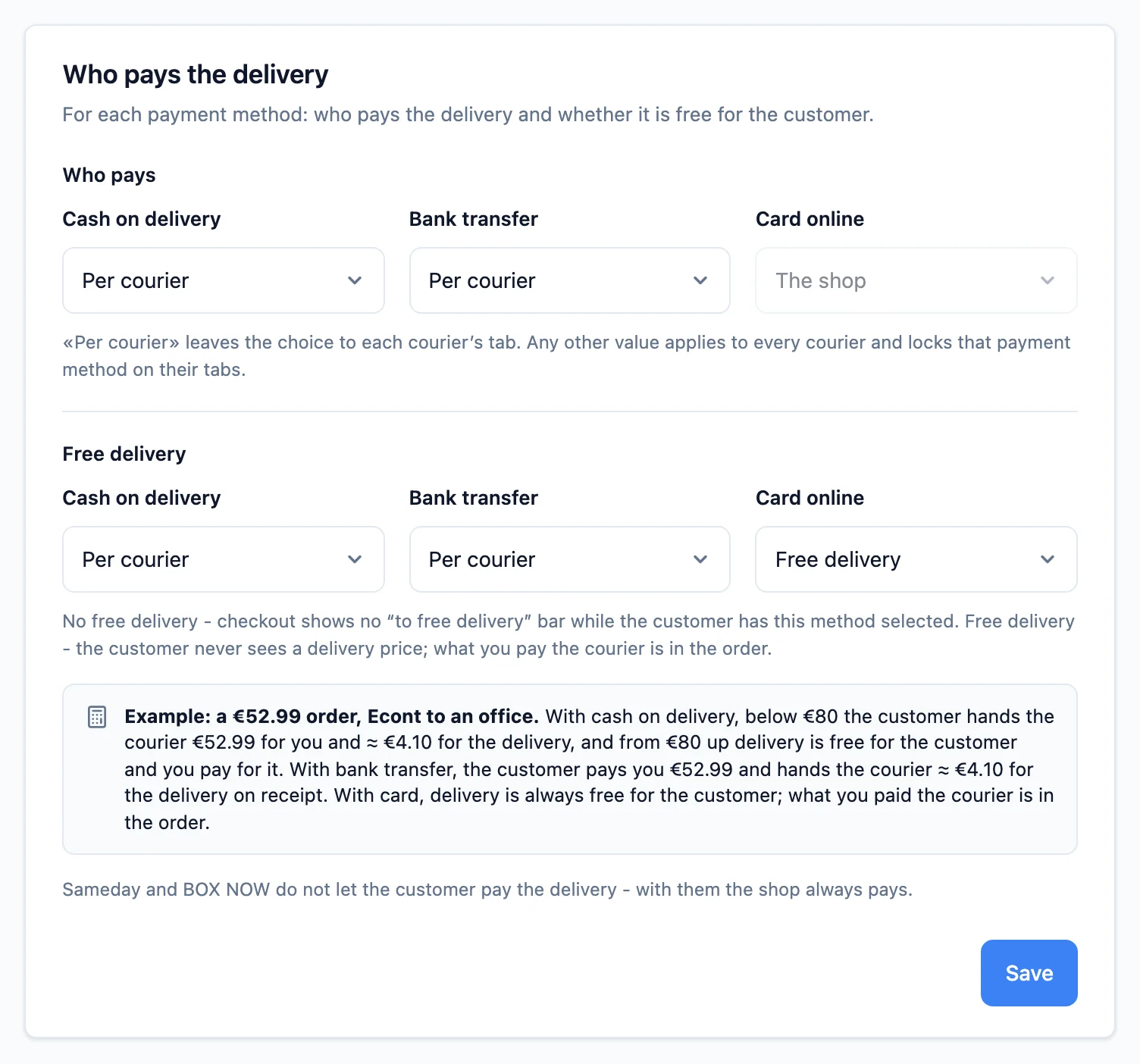
Any value except Per courier applies to every courier and locks that payment method on their tabs, which say "The shop-wide setting from the «Main» tab applies". Under the row, Example shows what happens to the money on a €52.99 order. The methods may differ - for example the customer pays the courier with cash on delivery, while with card the shop pays.
Which couriers allow it. Econt, Speedy and Pigeon Express can bill the customer for the delivery. Sameday and BOX NOW do not let the customer pay the delivery - with them the shop always pays, even when the shop-wide setting is The customer - to the courier. The courier stays at checkout; delivery with it is simply included in the total.
With Speedy your contract must allow the recipient to pay the delivery. If it does not, Speedy refuses the label and the order shows the reason: ask Speedy to switch it on and register the label again, and until then choose The shop for Speedy. The new setting applies to new orders - an order already placed keeps its payer and waits for Speedy. If you would rather not wait, change its courier or address in Orders › To process: delivery is priced again under the new setting and added to the total to the shop, so tell the customer. If the customer pays the cash on delivery by card at a Speedy office, Speedy deducts the card commission from what it pays out to you - just as when the shop pays the delivery.
What the customer sees. At checkout, on the page after the order, in the emails and in their account, the customer sees:
- "Delivery - you pay the courier: ≈ €4.10" - the price the courier returns for the customer at the moment of the order. The ≈ is there because the amount at the door can differ slightly (discounts or fees under the courier's contract). If the courier returns no price at that moment, the order still goes through and the customer is told they pay the courier at its rates on delivery.
- "Cash on delivery to the shop" (with cash on delivery) or "Total to the shop" (with bank transfer and card) - the goods only, after discounts. This is the cash on delivery, the card charge or the bank transfer.
- "Total with delivery: ≈ …" - the two together.
The amounts change at once when the customer switches courier or payment method. An order where the customer pays the courier never reads "Free delivery". In Orders you see who pays the delivery and the same two totals.
The money rules:
- Free delivery wins. When the order reaches Free delivery over, or the payment method is Free delivery, the shop pays and delivery is free for the customer.
- The handling fee is not added - there is no delivery price of yours to add it to.
- The cash-on-delivery fee is taken from the customer by the courier together with the delivery. Pass the cash-on-delivery fee to the customer applies only to orders the shop pays the delivery for.
- My fixed prices apply only to orders the shop pays the delivery for. When the customer pays, checkout always shows the courier's live price.
- Refused parcel: if the customer refuses to pay the delivery, the courier returns the parcel and bills you for both legs - as with a refused cash-on-delivery parcel today.
- An order keeps its payer. A change of the setting applies to new orders; the label of an order already placed follows what the customer saw. If you edit an order and change the courier, the payment method or the address, delivery is priced again, as before.
- Returns and withdrawal. Refund original delivery on full returns refunds nothing for the delivery of such an order, because the shop never received it. What the customer paid the courier does not pass through the shop. Whether you owe it on a withdrawal from the contract, decide with your lawyer.
- Fiscal receipts and documents - the amount to the shop is the goods only, so your documents cover the goods only. See Fiscal receipts.
A new shop starts with The customer - to the courier for cash on delivery, bank transfer and card: with Econt, Speedy and Pigeon Express the customer pays the courier for the delivery, with Sameday and BOX NOW the shop pays. A shop created earlier starts with Per courier, and The shop on every tab, so nothing changes until you choose otherwise.
Free delivery
The Free delivery row of the Who pays the delivery card (on the Main tab) says, for each payment method - cash on delivery, bank transfer and card - whether the customer gets delivery for free:
- Per courier - each courier's tab decides. This is the setting until you choose another.
- No free delivery - delivery is never free. While the customer has this method selected, checkout shows no "to free delivery" bar.
- Free delivery - delivery is always free. You pay the courier, and the customer never sees a delivery price - not at checkout, not in the emails, not in their account. What you paid shows in the order, and in Expenses when its Delivery source is on.
- Free delivery over - below the amount the customer pays for delivery as usual; from it up, delivery is free. Type the amount in the field to the right, on the same row. It is compared with the goods after discounts.
Any value except Per courier applies to every courier and locks that payment method on their tabs, which say "The shop-wide setting from the «Main» tab applies" with a link back. Under the row, Example shows what happens to the money on a €52.99 order. The methods may differ - for example free delivery with card and paid delivery with cash on delivery, to encourage prepayment.
Each courier's tab has the same row in its Delivery pricing card, without Per courier. The threshold each courier applied before this row existed is saved in it: Free delivery over with the shop's threshold or the one from its own rate table, or No free delivery where there was none. A courier you connect later shows the threshold it applies the same way, and keeps it until you change the row and save.
The "Free shipping over (€)" field left the shipping policy
Free delivery is now set per payment method, so the Shipping policy field and the Free over field of the fixed-rate tables are gone. The threshold you had is saved in every courier's row as Free delivery over. A shop with business clients edits that same amount in the Free over - on-account orders field: it applies to on-account orders and to a courier connected later whose row you have not saved yet.
The announcement bar is never changed for you
When no payment method offers free delivery any more but your announcement bar still promises it, the card warns you with a link to Site editor → Store → Announcement bar. The text is yours - change or remove it.
A new shop starts with No free delivery for every payment method.
Delivery pricing
This section is about orders the shop pays the delivery for. When the customer pays it, checkout shows the courier's price for the customer - see Who pays the delivery above.
The customer is shown the courier's exact price for that parcel (based on your sender address, the destination, and the weight), plus any handling fee you set. It is not rounded up. If you enabled your own delivery prices for a courier, your table applies instead; BOX NOW always uses your rates - by locker size - because it offers no live quote.
By default the courier's cash-on-delivery commission is not charged to the customer - you absorb it (the courier invoices it to you separately).
The customer can carry the COD fee instead
Turn on "Pass the cash-on-delivery fee to the customer" in Settings → Couriers and it is added to the delivery price.
Free-delivery bar
When at least one payment method offers Free delivery over an amount, your shop shows the customer how far they are from it: in the cart, in the mini-cart at the top right (when the customer points at the cart icon on a computer) and in the order summary at the final step, above the totals. It reads "€20.00 more for free delivery", over a thin bar that fills toward the threshold. There is nothing to switch on - the bar follows the Free delivery row.
- Before a payment method is chosen (cart, mini-cart) the bar shows the lowest amount from which any payment method on any courier you offer gives free delivery. When a method is Free delivery with no amount, the bar names it: "Free delivery when paying by card".
- At the final step the bar follows the chosen payment method (and courier): none with No free delivery, its amount with Free delivery over, and "You have free delivery" with Free delivery. So a customer may see the bar in the cart and lose it by choosing a method without free delivery.
- No free delivery for every method - no bar anywhere, and your product pages do not announce free delivery to search engines.
- The amount is after discounts, as on the order itself: automatic promotions count, and at the final step so does an entered promo code. In the cart the code is not known yet, so once the total reaches the threshold the bar says "Your total reaches €150.00 for free delivery". "You have free delivery" is said only at the final step, where every discount is known.
- The thresholds from before the card are now saved on the courier tabs, so the bar follows the rules above. If your couriers had different thresholds, the bar that used to hide now shows the lowest one. With store pickup chosen the bar hides, because pickup is always free.
- The bar's sentences can be reworded per language in Online store › Translations (search for "free delivery"), like the delivery line.
{amount}is the amount left and{threshold}the threshold.
Store pickup
If you have a physical location, turn on Offer store pickup. The address pre-fills from your sender address - you can change it, and optionally add collection hours/instructions. This option uses no courier and is always free: the customer chooses "Pick up from shop" on the final step and collects the order in person. It's independent of the couriers - you can offer it even with no courier offered. After an order, the confirmation page shows the pickup address on a Google map so the customer can find it easily. Cash at pickup is offered only with a "Yes" to the own-fiscal-device question in Fiscal receipts. Otherwise the customer pays by bank transfer or card, and the pickup card says "Cash is not offered". In demo mode cash at pickup stays on and the note is not shown.
Office pickup reminders
When a parcel is waiting for collection at a courier office, your store can email the customer automatically: Day 1 (arrival - "your order is ready to collect"), Day 3 (a reminder), and Day 5 (a final notice before the parcel returns to sender). Each of the three is a separate toggle.
The clock starts when the parcel reaches the office - not when the order was placed. Day 1 goes out the moment the courier reports it ready for collection (the same moment that puts the At office · N days badge on the row in Orders). A day you've switched off is simply skipped - switching it back on later will not send a backdated reminder.
Reminders only go to orders the customer has to come and fetch: to a courier office or parcel locker, and store pickup (there the clock starts when you press Ready for pickup in Orders). An order delivered to an address never gets one - it comes to the door. A cancelled, returned or already-collected order stops the reminders too.
If you don't want to wait for the next scheduled day, expand the row in Orders and press Send a pickup reminder - it goes out at once, and the automatic schedule won't repeat it.
The couriers also send their own reminders
Econt and Speedy already send their own reminders - turn these on only if you want extras, since too many emails may annoy some customers.
Product weight
Shipping is priced by weight. Enter a weight (kg) on each product (the "Shipping & returns" card of the product editor). For a product sold in variants, weight and size are set per variant - in the Variants matrix (see Variants & stock). Each order line uses the first value available along the chain: variant weight → product weight → default parcel weight from your settings. Dimensions (L×W×H) are optional: they are sent to the courier when the order is a single item (each blank side inherits along the same chain); every other order uses the default parcel dimensions from Settings › Couriers, and with none set no size is sent - exactly as before.
Once a product without variants has a weight and size, the "Check courier prices" button on that same card shows roughly what shipping this item would cost with each connected courier (to office/locker firm, to address approximate). It is fetched on demand and cached by weight & size; it helps you plan your margin.
How it works at checkout
The customer picks a courier and a delivery method (to an office/parcel machine or to their address) on the final step. The cost is calculated live and added to the total to pay - except when the customer pays the courier for the delivery: then the total to the shop is the goods only, and the courier's price is shown separately. What happens next depends on your Order fulfilment mode:
- Auto-register - a label is generated straight away: if the courier responds quickly, the tracking number shows immediately and is included in the confirmation email; if not, the customer receives the number in a separate email as soon as the label registers.
- Confirm and batch - no label is created and the courier is not contacted. The order lands in Orders → To process and waits for you. The customer gets their confirmation email without a tracking number, and receives the tracking in a separate email once you register the batch. Until then the order is not frozen, so you can still correct the customer's details or delivery address.
This applies to card orders too - the mode is about *when* the label is created, never about how the customer paid.
Search understands both alphabets
City and office search works in Cyrillic and Latin alike - typing "Plovdiv" finds "Пловдив".
Customers' favourite offices
Customers with an account can save the office they usually collect from - at checkout, right after picking one ("Save this office to my account"), or from My account → Delivery addresses. At their next order the saved offices appear at the top as one-tap options, so they choose in a single click instead of searching the office list again. They can have one default office per courier - one for Econt, one for Speedy, and so on. The courier and delivery method are also pre-selected from the customer's last order.
Only offices of the couriers you're currently running are shown. Turn a courier off and its offices disappear from checkout and from customer profiles, but they are not deleted - turn it back on and they return exactly as they were.
If a courier closes or renumbers an office, that's caught the moment the customer selects it at checkout: they're told to pick another office, and the saved entry stays (it's theirs to delete). No order is ever sent to an office that no longer exists.
Several packages on one waybill
When an order does not fit in one box, there is no need to tape the boxes together or book a second waybill in the courier's portal. Set the order's Number of packages - it ships on one waybill and the courier prints one label per package ("1 of 2", "2 of 2").
- It works with Econt, Speedy and Pigeon Express. Sameday and BOX NOW orders are always one package.
- The price does not change - the courier charges several packages as one package of the same total weight, and the cash on delivery is collected once.
- To a locker (Econtomat, a Speedy automat, a Pigeon locker) a parcel is always one package - the couriers accept no more.
- Where a courier wants a weight per package (Speedy, Pigeon), the total weight is split evenly.
How to set the number - before and after registering - is in Orders.
Orders
In Orders you can see the chosen courier, the delivery method, who pays the delivery, the label status, the number of packages and the tracking number. When needed, you can download the label or retry registration.
Next step
Delivery is sorted. Now make sure the customer actually hears back - otherwise checkout ends in silence. See Email notifications.